
AI Interior Design: Design Your Interior Using AI With Draw3D
Learn how AI interior design tools like Draw3D let you transform rooms, annotate specific areas, and generate stunning redesigns in minutes.
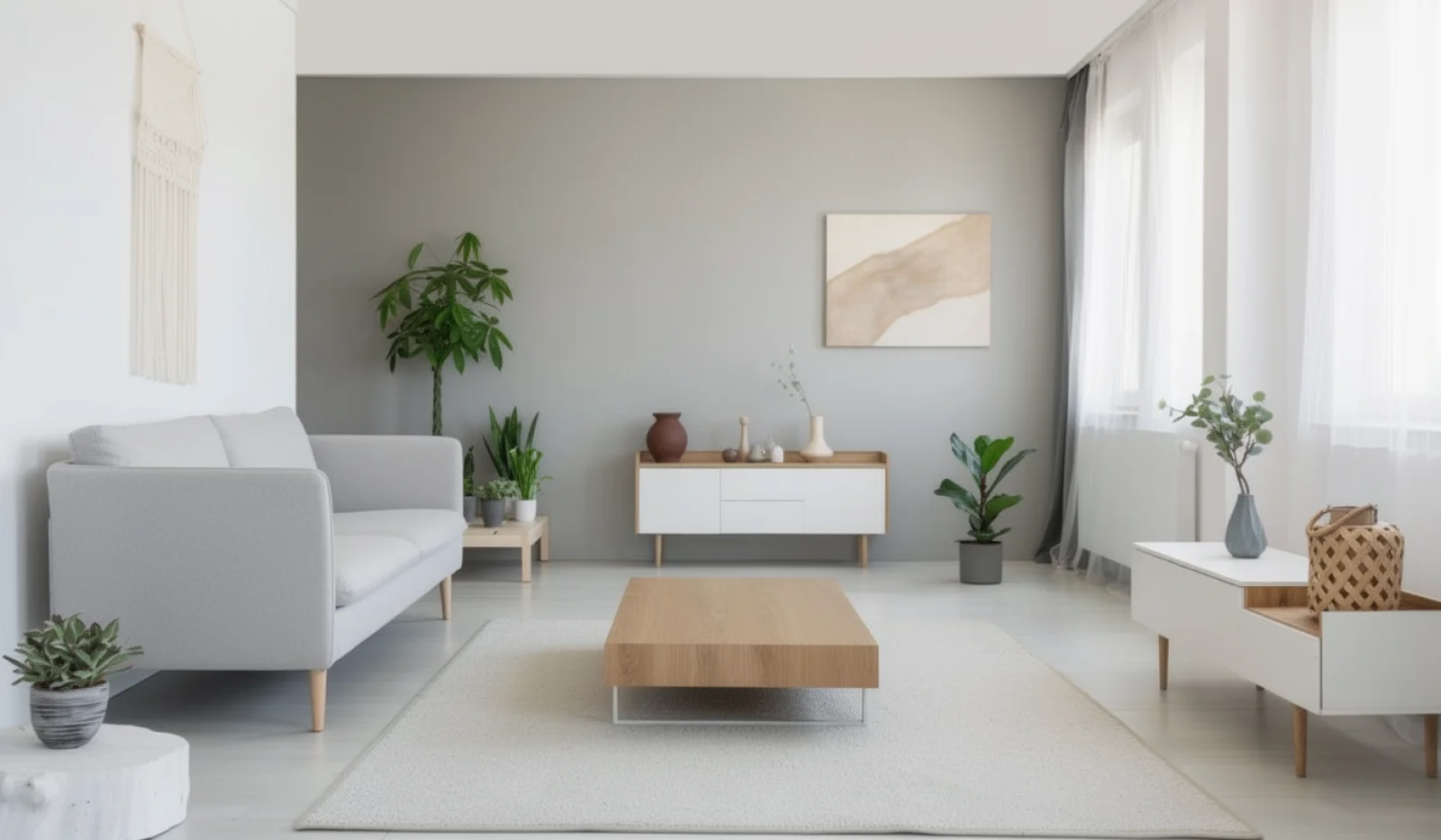
AI interior design is making it easier than ever to transform a room without starting from scratch. Instead of manually redesigning every detail, you can now upload an image of your space, describe the look you want, and let AI generate a refreshed interior in minutes.
Whether you want to modernize a living room, test a new furniture layout, explore different color palettes, or completely change the mood of a space, AI can help you visualize the result before making any real-world decisions. This makes interior planning faster, more creative, and much easier for homeowners, designers, and content creators alike.
One of the most practical ways to do this is with Draw3D. With Draw3D, you can precisely annotate one or more parts of an image and describe the exact changes you want in each area. That means you are not limited to editing the whole room at once. You can tell the AI exactly what to change, what to keep, and what to add.
How Draw3D helps with AI interior design
Draw3D includes an annotation feature that makes interior editing much more controlled. You can upload your room image, draw over the areas you want to change, and write instructions for each selected part. This is especially useful when you want to update only a wall, a sofa, a lighting fixture, or a decorative section without affecting the rest of the room.
Because the instructions are attached directly to selected areas, the AI understands your intent more clearly. That gives you a much better workflow than relying on a single generic prompt for the entire image.
How to redesign your room in Draw3D
To start, simply visit https://app.draw3d.online/workspace.
From there, go to Creative Canvas and start a new project.
Select 2D Sketch Mode, then choose Upload Sketch and upload your room image.
Next, use the Annotate tool to mark different parts of the room. You can select one or multiple areas and describe exactly what should change in each one.
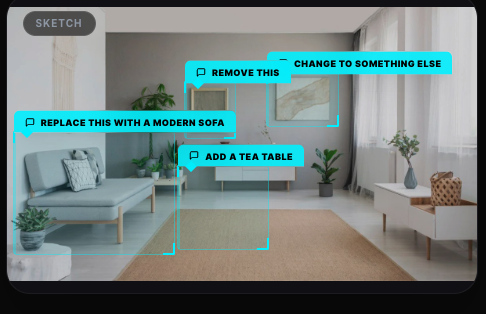
Once your instructions are ready, hit Generate.
This makes it easy to explore new layouts, decor ideas, furniture replacements, and mood changes without rebuilding the scene manually.
Adjust lighting and mood with Edit with AI
Interior design is not only about furniture and materials. Lighting also changes how a room feels. Draw3D lets you refine that too using Edit with AI. You can simply describe the lighting change you want, and the scene will update accordingly.
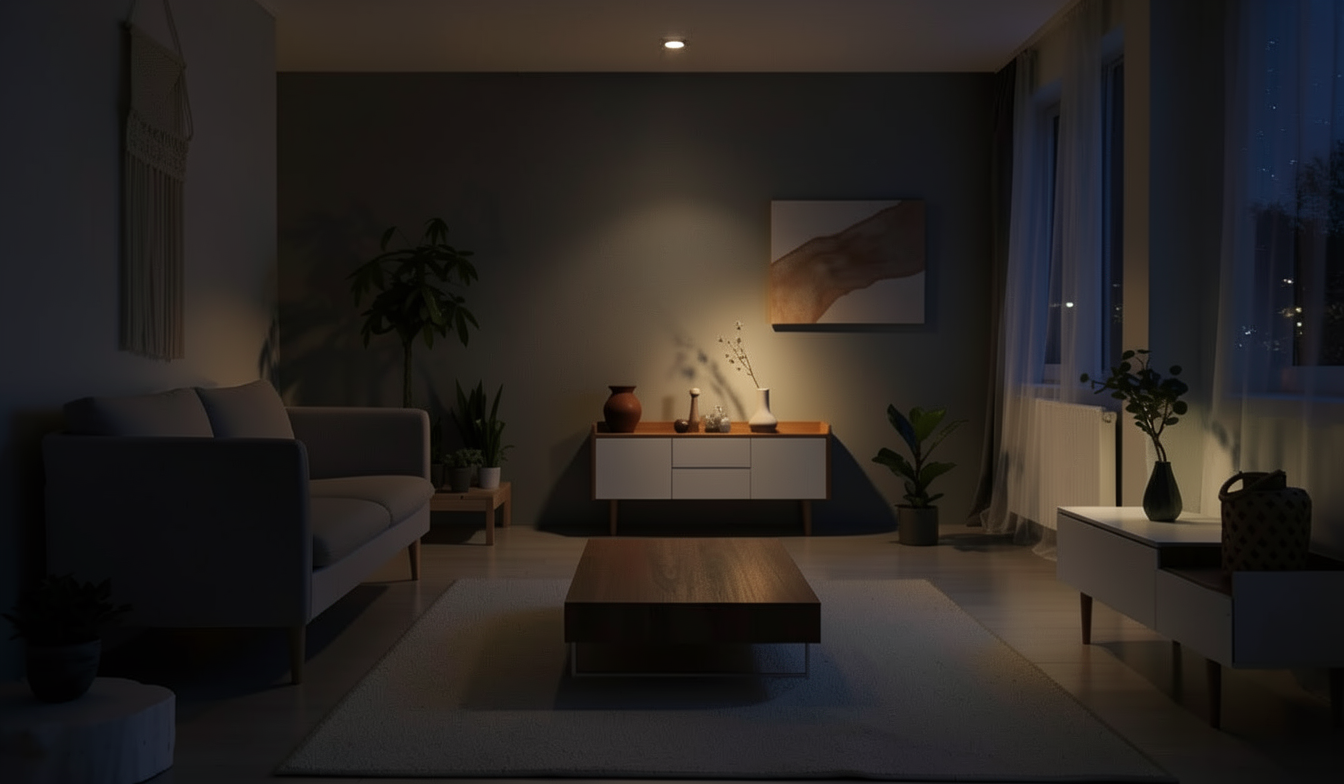
This is incredibly helpful when you want to preview a cozy evening atmosphere, luxury hotel-style lighting, soft warm tones, or a brighter daylight presentation.
Why AI interior design matters
AI interior design is useful because it shortens the gap between imagination and visualization. Instead of explaining a concept with words alone, you can generate a visual result almost immediately. That makes it easier to experiment, compare options, and communicate ideas clearly.
For homeowners, it means trying out new room concepts before renovating. For designers, it means moving faster with client presentations and concept exploration. For marketers and creators, it means generating beautiful interior visuals without a long production pipeline.
Final thoughts
If you want a faster way to redesign interiors, test decor ideas, or change the mood of a room, Draw3D offers a very practical AI-powered workflow. The annotation system makes it easy to guide the AI precisely, and the lighting edits make it easy to refine the final atmosphere.
If you are exploring AI interior design tools, Draw3D is a strong option for turning room images into polished design concepts with just a few instructions.
Further Reading

How You Can Use AI for Architectural Visualizations
Learn how AI can speed up architectural visualization from sketches and raw 3D scenes to polished renders and video using Draw3D.

Sketch to Image AI: Turn Rough Drawings Into Realistic Renders in Seconds
Discover how sketch to image AI helps architects, designers, and creators turn rough drawings into realistic renders fast with Draw3D.

AI Image Enhancer: Turn Ordinary Photos Into Cinematic Visuals
Discover how an AI image enhancer can turn ordinary photos into cinematic visuals, pencil sketches, anime art, and stylized 3D images in seconds.