The 6 Best Free Sketch to Image AI Tools in 2026 (Tested & Ranked)
Looking for the best free sketch to image AI? We tested and ranked the top free tools in 2026—comparing real-time canvas drawing, line fidelity, export limits, and watermark policies.
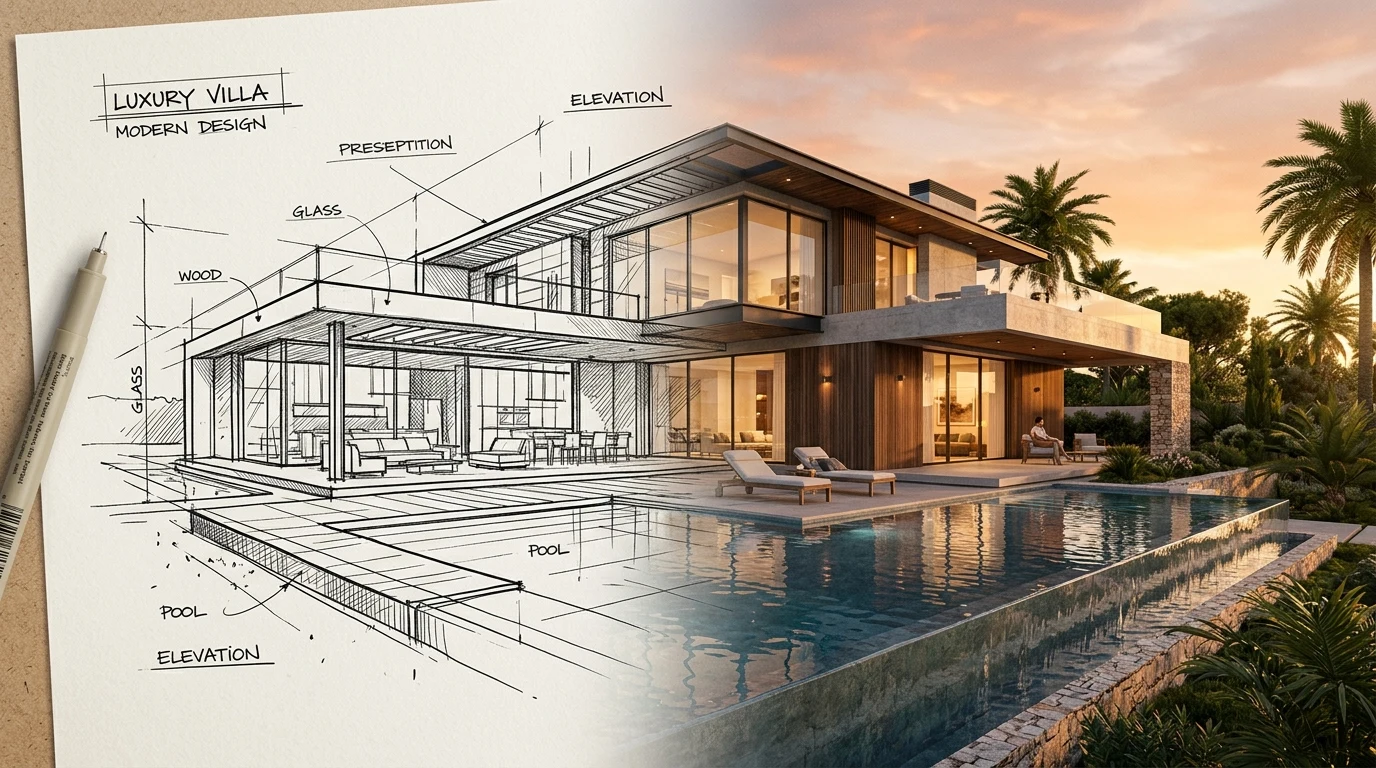
If you have ever tried describing a specific visual idea using text prompts alone, you know the frustration. You ask for a minimalist armchair with curved oak legs, and the AI hands you a winged recliner facing the wrong direction. You ask for an architectural massing with a cantilevered balcony, and it relocates your windows.
Text prompts describe what an object is, but they cannot reliably describe where things belong in 3D space. That is why sketch to image AI has quickly become one of the most practical applications of generative AI. By supplying a simple line sketch, you anchor the geometry, proportion, and perspective, letting the neural network focus on lighting, materials, and textures.
However, finding tools that are genuinely free—without surprise paywalls, restrictive watermarks, or immediate credit cliffs—can take hours of testing. In this guide, we break down the six best free sketch-to-image AI tools in 2026, what each free plan actually includes, and which workflow each excels at.
Quick Comparison: Free Sketch-to-Image AI Tools
| Tool | Free Plan Allowance | Real-Time Canvas? | Watermarks on Free? | Best For |
|---|---|---|---|---|
| Krea AI | Daily free compute units | Yes (Instant) | No | Rapid visual brainstorming & live sketching |
| Leonardo.ai | 150 tokens every 24h | Yes (Realtime Canvas) | No | Stylized digital art, concept design & characters |
| Fooocus (SDXL + ControlNet) | 100% Free Forever (Open Source) | No (Batch generation) | Never | Total privacy, power users & offline rendering |
| Vizcom | Free starter tier (limited renders) | Partial | Yes (Small corner logo) | Industrial, automotive & consumer product sketching |
| Canva Magic Media | Free starter lifetime allowance | No (Single-click) | No | Casual creators & quick social layouts |
| Draw3D | Free starter credits | Focused Render | No | Architectural line sketches, floor plans & multi-region annotations |
1. Krea AI — Best for Real-Time Live Canvas Doodling
Krea AI remains one of the most popular platforms for real-time generation. Instead of drawing a sketch, uploading it, typing a prompt, and waiting 30 seconds for an output, Krea offers a split-screen canvas: as you draw shapes and apply color brush strokes on the left panel, the right panel updates the photorealistic render in near real-time.
How the Free Plan Works: Krea provides a pool of daily compute units for free registered accounts. You can sketch and iterate continuously until your daily compute quota is met. Queue times can slow down slightly during peak global hours, but for testing compositions or ideating on shapes, it remains remarkably frictionless.
- Strengths: Zero rendering latency; supports webcam input and screen capture feeds; very engaging for live creative jam sessions.
- Limitations: Line preservation can drift if your sketch is too intricate; fine-grained material control across complex multi-part sketches is tricky.
2. Leonardo.ai — Best for Stylized Art & Fantasy Illustration
Leonardo.ai has grown into one of the most versatile browser-based creative suites. For sketch workflows, Leonardo provides a Realtime Canvas feature alongside standard image-to-image and ControlNet guidance modes.
What sets Leonardo apart is its deep library of curated community and foundation models. You can sketch a rough silhouette and apply specific checkpoints tailored to anime, dark fantasy concept art, isometric game assets, or cinematic character portraits.
How the Free Plan Works: Leonardo grants 150 tokens every 24 hours to free accounts. Basic generations cost 1 to 5 tokens, meaning a typical user can produce 30 to 50 iterations every single day without paying. Exports do not carry a watermark on the free tier.
- Strengths: High aesthetic polish; generous daily token reset; extensive control over prompt guidance and stylistic models.
- Limitations: Realistic architectural or engineering line drawings can occasionally take on an overly illustrative, video-game look.
3. Fooocus (SDXL + ControlNet) — Best for 100% Free, Private Offline Rendering
If you have a laptop or desktop with a dedicated graphics card (NVIDIA GPU with 6GB+ VRAM), Fooocus is the holy grail of free AI rendering. Fooocus is a completely free, open-source software project that packages Stable Diffusion XL (SDXL) and ControlNet into a clean, minimal interface that requires no coding skills.
Unlike web services that meter your usage with tokens or subscriptions, Fooocus runs directly on your machine. You simply select the "Image Prompt" tab, upload your sketch, toggle on "CPDS" or "Canny/Lineart" mode, and type your prompt.
How the Free Plan Works: 100% free forever. There are no credits, no usage caps, no accounts, and no data uploaded to third-party servers. If you lack a strong local GPU, you can also run Fooocus for free via Google Colab.
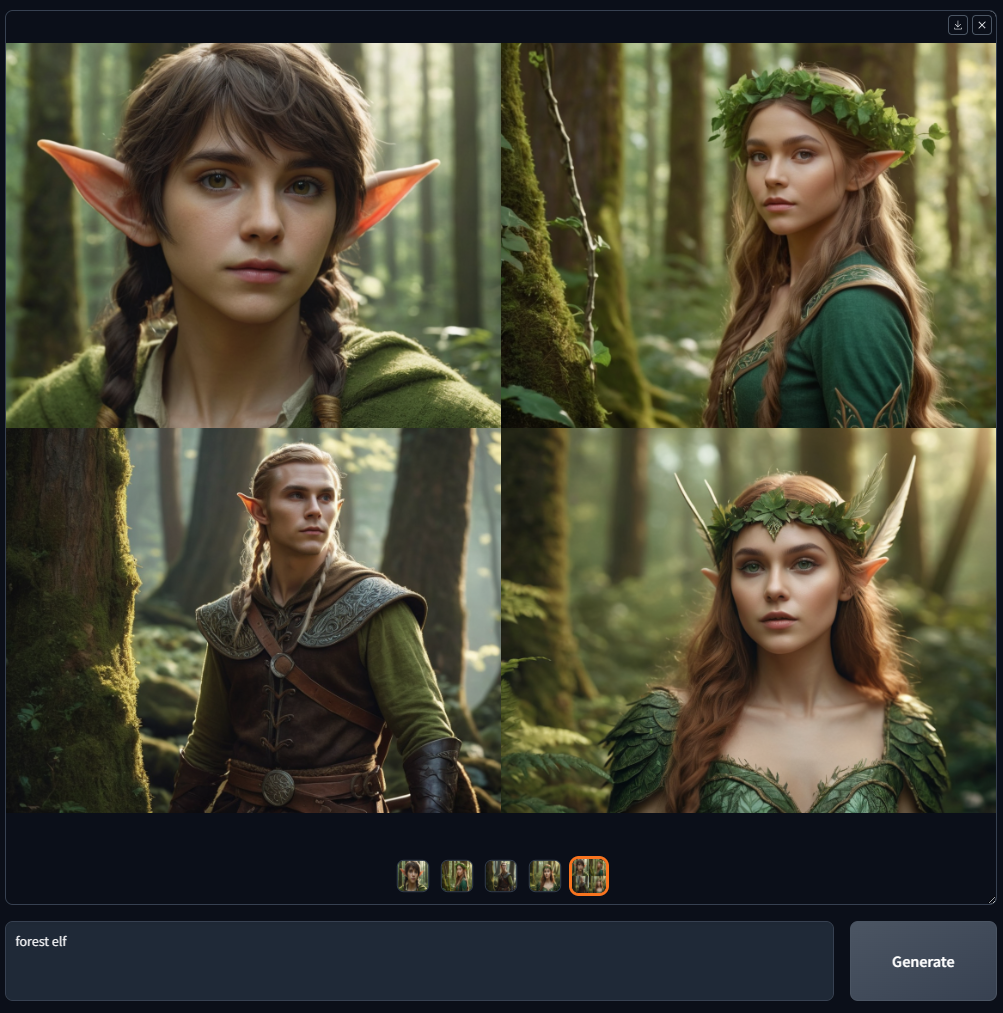
- Strengths: Completely unlimited generations; full data privacy; pristine line preservation using ControlNet weights; zero cost.
- Limitations: Requires a capable graphics card and roughly 15GB of disk space for models; lacks a real-time collaborative canvas.
4. Vizcom — Best for Industrial & Automotive Product Designers
Vizcom was purpose-built from the ground up for industrial designers, transportation stylists, and hardware engineers. If you draw with markers or digital tablets using traditional ID sketching techniques (contour lines, cross-sections, and perspective boxes), Vizcom understands that visual language natively.
It includes intuitive brush rendering modes—such as "Volume", "Sketch-to-Render", and "Material Layering"—that interpret lighting highlights across curved plastic, cast metals, and chamfered edges with high fidelity.
How the Free Plan Works: Vizcom offers a free starter tier that includes a limited number of active projects and rendering credits. Outputs on the free plan include a small watermark and export resolution is capped unless you upgrade.
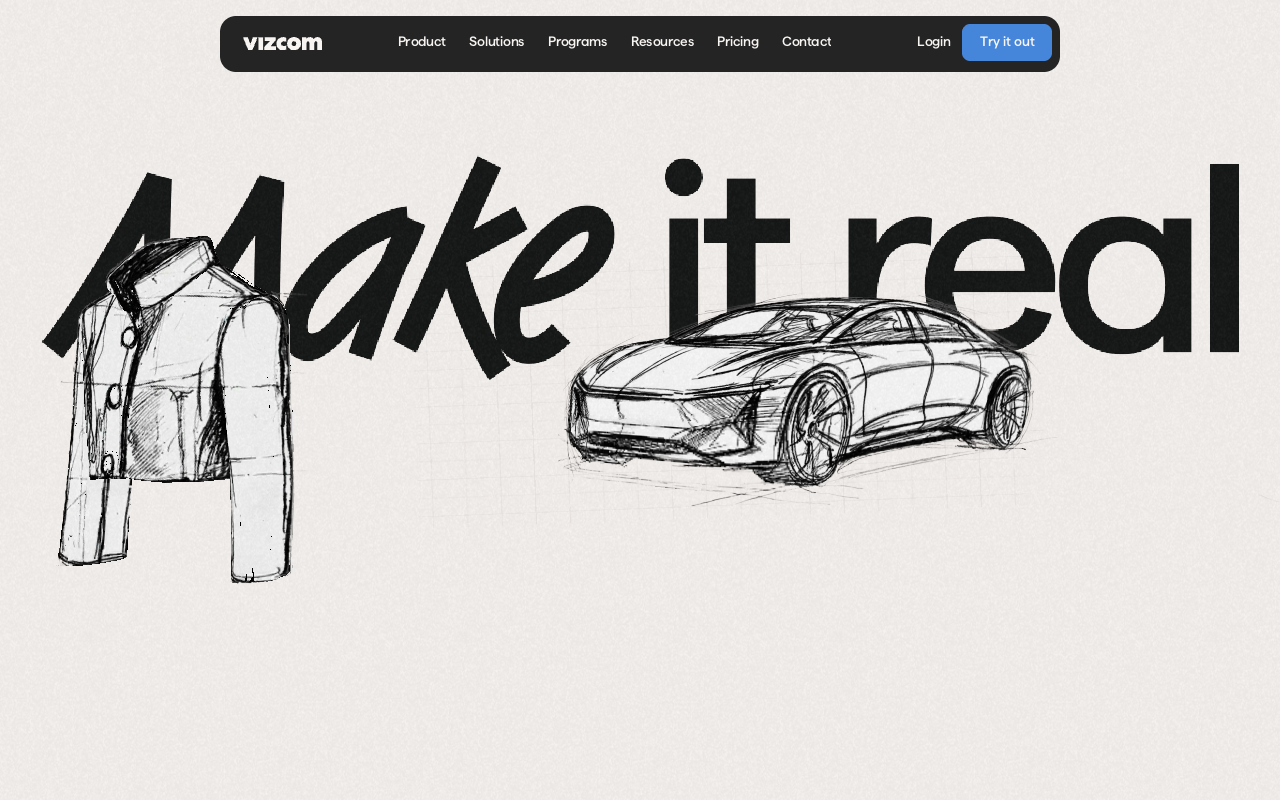
- Strengths: Understands industrial design shading, specular highlights, and product geometries better than generalist models.
- Limitations: Free tier exports carry watermarks; focused primarily on hard-surface goods rather than architecture or environments.
5. Canva Magic Media — Best for Non-Designers & Quick Layouts
For content creators, marketers, and teachers who do not use specialized design software, Canva's built-in Magic Media tool provides an approachable sketch-to-image converter right inside your presentation or document canvas.
You can doodle an outline with Canva's native drawing pens or upload a child's drawing, type a brief description, and choose a visual style (photo, digital art, 3D render). The resulting graphic can immediately be dropped into a flyer, slide deck, or social graphic without switching apps.
How the Free Plan Works: Standard free Canva accounts include an initial allocation of 50 lifetime Magic Media generation credits.
- Strengths: Zero learning curve; direct access to Canva's massive asset library and typography templates.
- Limitations: Strict credit limit for free users; less structural adherence to precise architectural or technical line work.
6. Draw3D — Best for Spatial Precision, Architecture & Annotated Sketches
A recurring issue with standard sketch-to-image generators is prompt bleeding: if you prompt "oak wood floor, raw concrete wall, and black aluminum window frames", the AI will frequently mix up the assignments—placing wood grain on the ceiling or concrete on the furniture.
Draw3D addresses this structural challenge by combining sketch-to-image with multi-region annotation and spatial directing. Instead of relying on a single vague text prompt, you can upload any 2D perspective sketch, hand doodle, or architectural floor plan and label specific zones individually.
The platform also bridges the gap between 2D and 3D: you can convert 2D elevation sketches into photorealistic visuals, import 3D blockouts, and even turn completed renders into short cinematic video walkthroughs in a single click.
How the Free Plan Works: Draw3D provides starter credits upon signing up, allowing users to test sketch transformations, annotation workflows, and render pipelines in the cloud without installing local software.
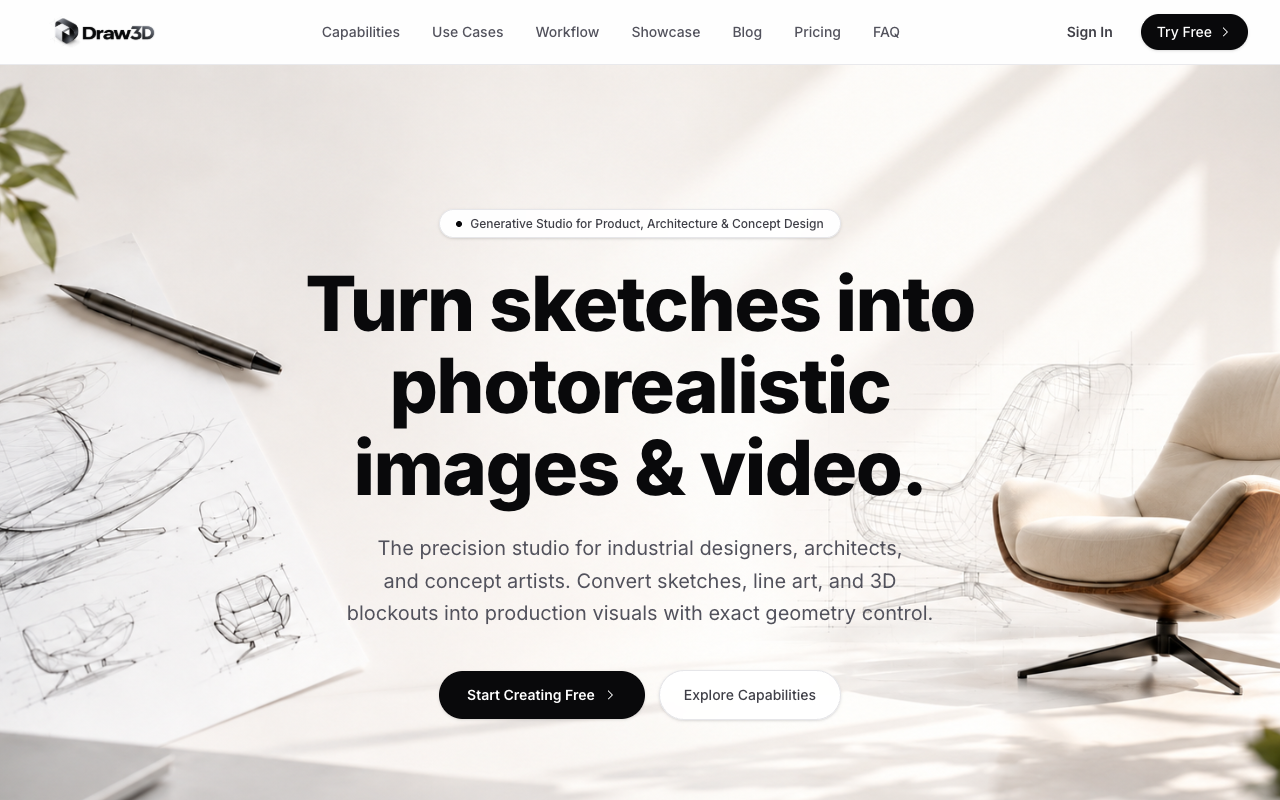
- Strengths: Multi-region annotation prevents style contamination; preserves perspective and architectural scale; handles both 2D drawings and 3D massing scenes.
- Limitations: Web-based platform requiring an active internet connection.
What Real Sketch-to-Image Looks Like (Before & After)
To understand how sketch-to-image works in practice, here are two real-world examples demonstrating how line geometry translates directly into photorealistic materials:
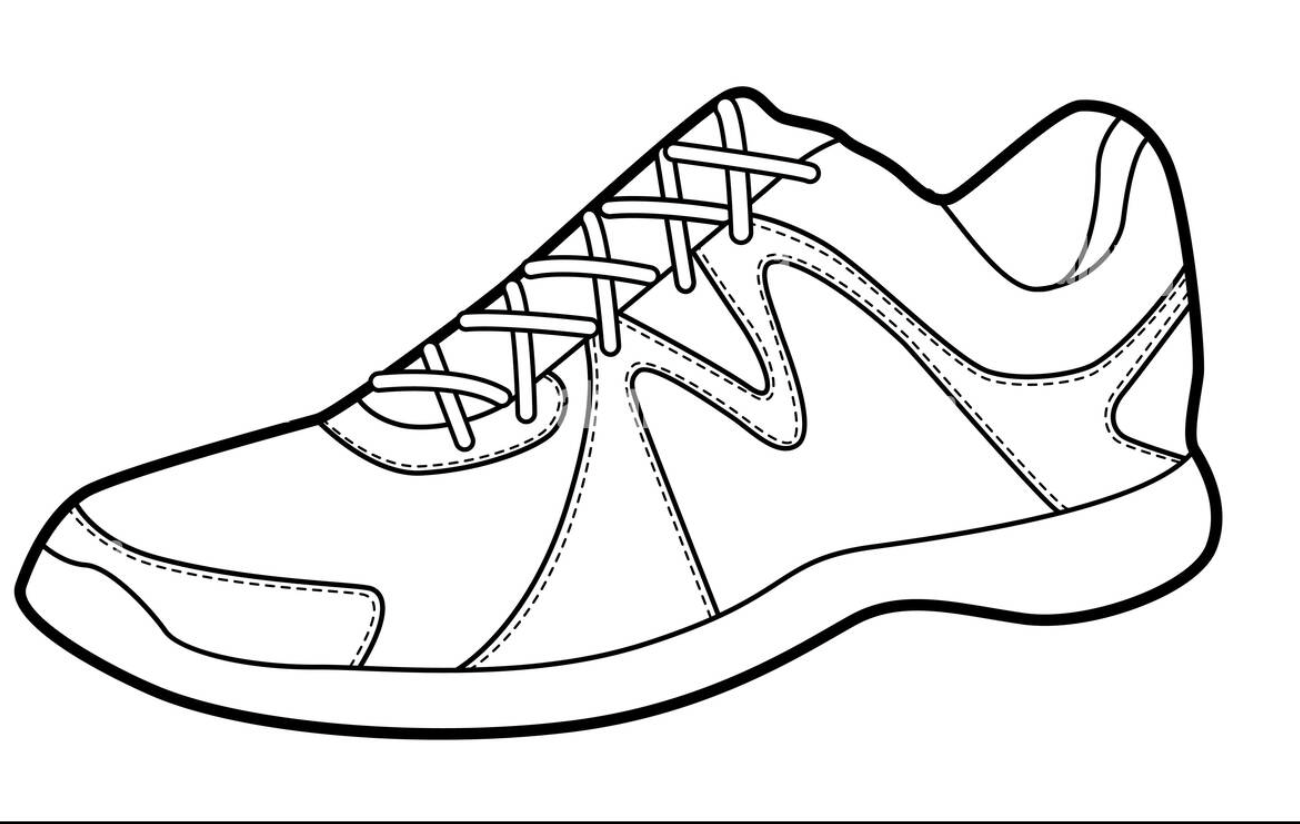
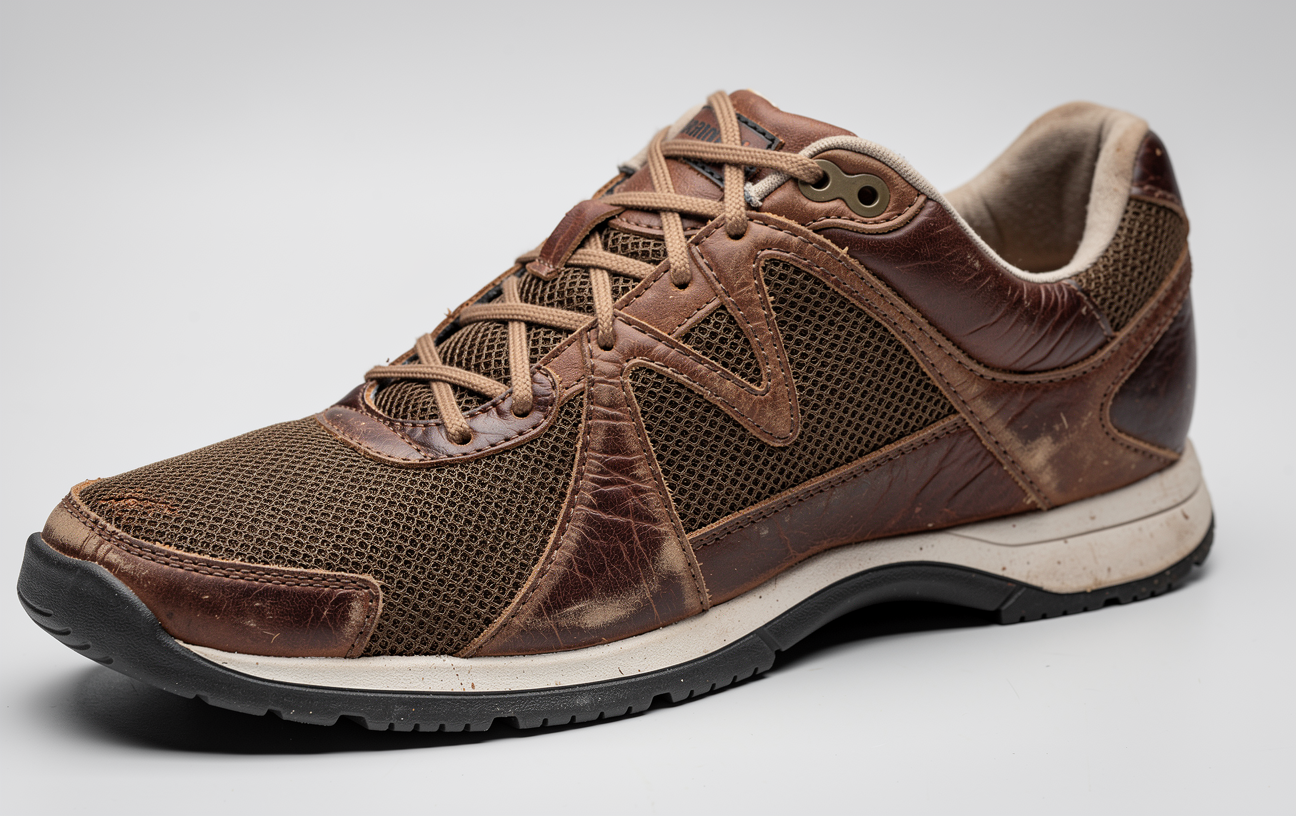
Case 1: Product Concept Sketch to Material Render
In this industrial design example, a clean black-and-white sneaker outline was used to anchor the lateral overlays, lace eyelets, and sole contour. Notice how the resulting render places distressed leather, breathable athletic mesh, and midsole foam precisely along the drawn boundaries:
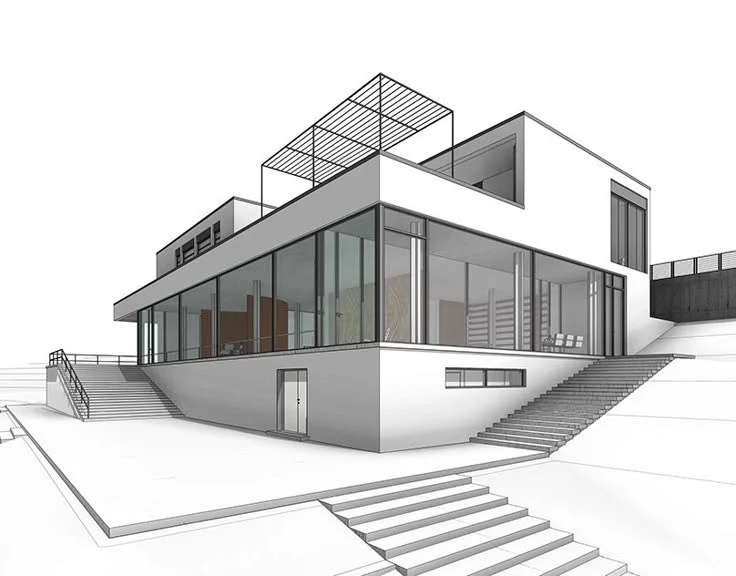
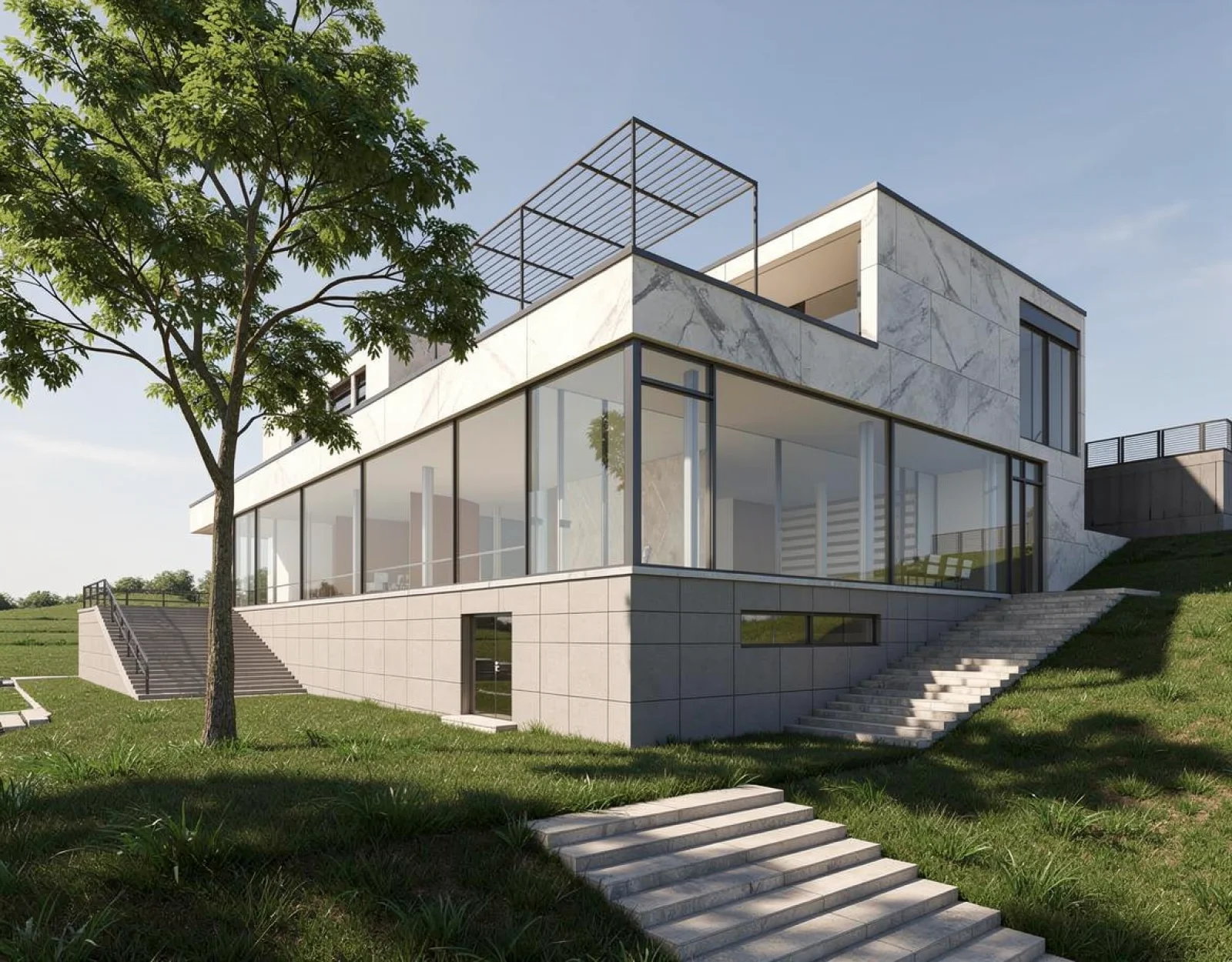
Case 2: Architectural Perspective to Finished Exterior
In this architectural study, a simple perspective blockout drawing with staircases, large glazing planes, and a roof pergola was transformed into a sunlit contemporary villa. The staircase steps, cantilever proportions, and window frames match the original drawing millimeter-for-millimeter:
4 Tips to Get Better Results from Any Free AI Tool
Regardless of which tool you use, following these core principles will dramatically improve your output quality:
- Use High-Contrast Linework: AI edge-detection models (such as Canny, Lineart, and HED) struggle with light, feathery pencil sketches. Use a black felt-tip pen, digital ink brush, or dark marker. If you are uploading a photo of paper, boost the image contrast in your phone's photo editor beforehand so the background is crisp white and the lines are solid black.
- Divide Roles Between Sketch and Prompt: Let the sketch dictate geometry, scale, and composition. Let the text prompt dictate materials, time of day, lighting angle, and atmosphere. If you try to draw intricate wood grain lines by hand, the AI may interpret them as structural ridges or cracks.
- Calibrate the Denoising Strength (0.45 to 0.65): Most tools allow you to adjust "influence" or "strength". Setting it too high (above 0.8) causes the AI to ignore your lines and hallucinate a random image. Setting it too low (below 0.3) makes the output look like a colorized coloring book. A sweet spot around 0.55 generally preserves structural silhouettes while allowing full photorealistic surface rendering.
- Block Out Flat Colors First: If you want a blue glass facade or a red brick chimney, take 10 seconds to fill those regions with flat base colors before feeding the image to the AI. Even a crude color block gives the diffusion model an unambiguous color guide.
Frequently Asked Questions
Can I commercially use images generated on free tiers?
It depends on the platform. Tools like Fooocus (open source) impose zero commercial restrictions on what you create. Leonardo.ai permits commercial use on paid tiers and offers limited commercial rights on free tiers, while Vizcom limits free outputs to non-commercial personal evaluation. Always check the specific terms of service of each service before using generated visuals for client deliverables or paid advertising.
Do I need to be skilled at drawing?
Not at all. The beauty of sketch-to-image AI is that it interprets basic geometric silhouettes. A simple rectangular box with two vertical divider lines is enough for the AI to generate a floor-to-ceiling glass patio door. What matters is spatial placement and proportion, not artistic shading.
Which tool is best if I don't want watermarks?
If watermarks are a dealbreaker, Krea AI, Leonardo.ai, Fooocus, and Draw3D provide unwatermarked outputs within their free allowances.
The Verdict: Which Tool Should You Choose?
- Choose Krea AI if you want lightning-fast real-time doodling and instant creative feedback.
- Choose Leonardo.ai if you are creating stylized digital art, fantasy concept art, or game character illustrations.
- Choose Fooocus if you have a capable GPU and want 100% free, unlimited, private rendering with zero usage caps.
- Choose Vizcom if you are an industrial or automotive designer using traditional marker sketching methods.
- Choose Draw3D if you need architectural line precision, floor plan rendering, or multi-region annotation control.
Sketch-to-image technology has transformed the conceptual phase from guesswork into an interactive, controllable process. Whichever tool fits your current setup, having the ability to turn a 30-second pencil doodle into a high-fidelity visual is one of the most powerful workflows available to creators today.
Further Reading
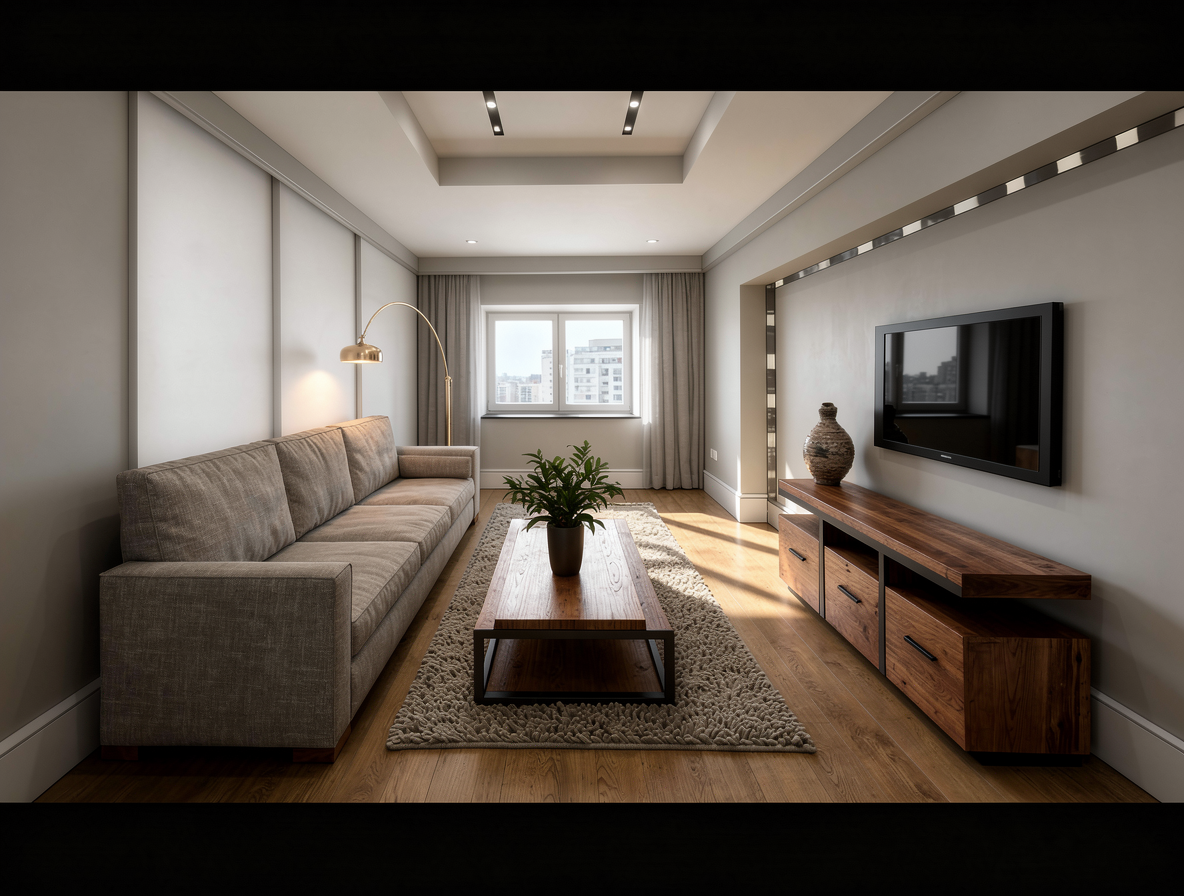
Turn Sketches into Photorealistic Images: How to Convert Any Drawing into a Photo with AI
Learn how to turn sketches into photorealistic images in seconds using AI. Discover how Draw3D locks lines and geometry to convert drawings into 8K photoreal renders.
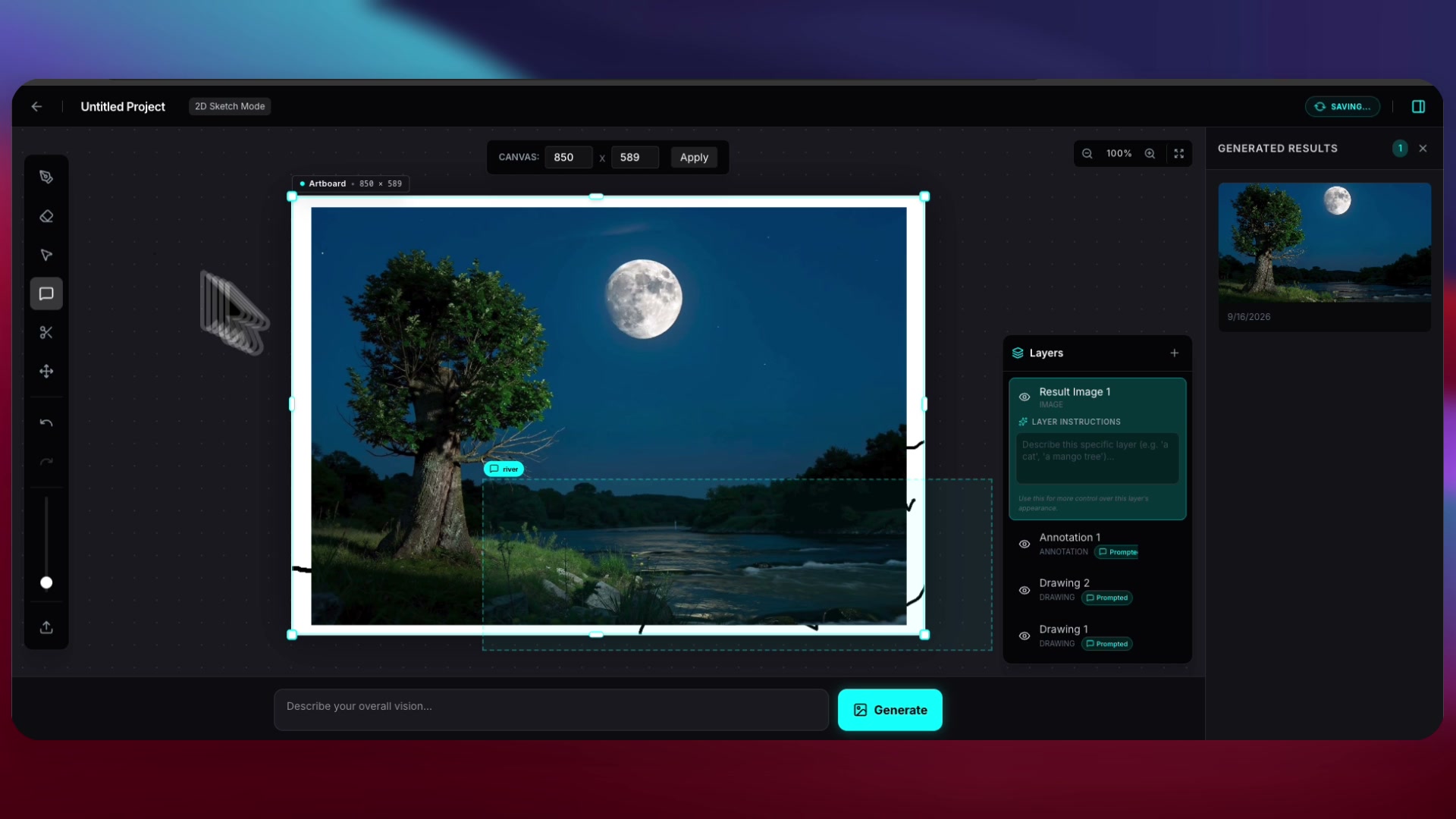
Turn Simple Doodles into Photorealistic Landscapes with AI: The Layer-by-Layer Drawing Workflow
Learn how to turn simple sketches and doodles into photorealistic landscapes using AI. Discover Draw3D's layer-based drawing canvas and spatial area prompts.
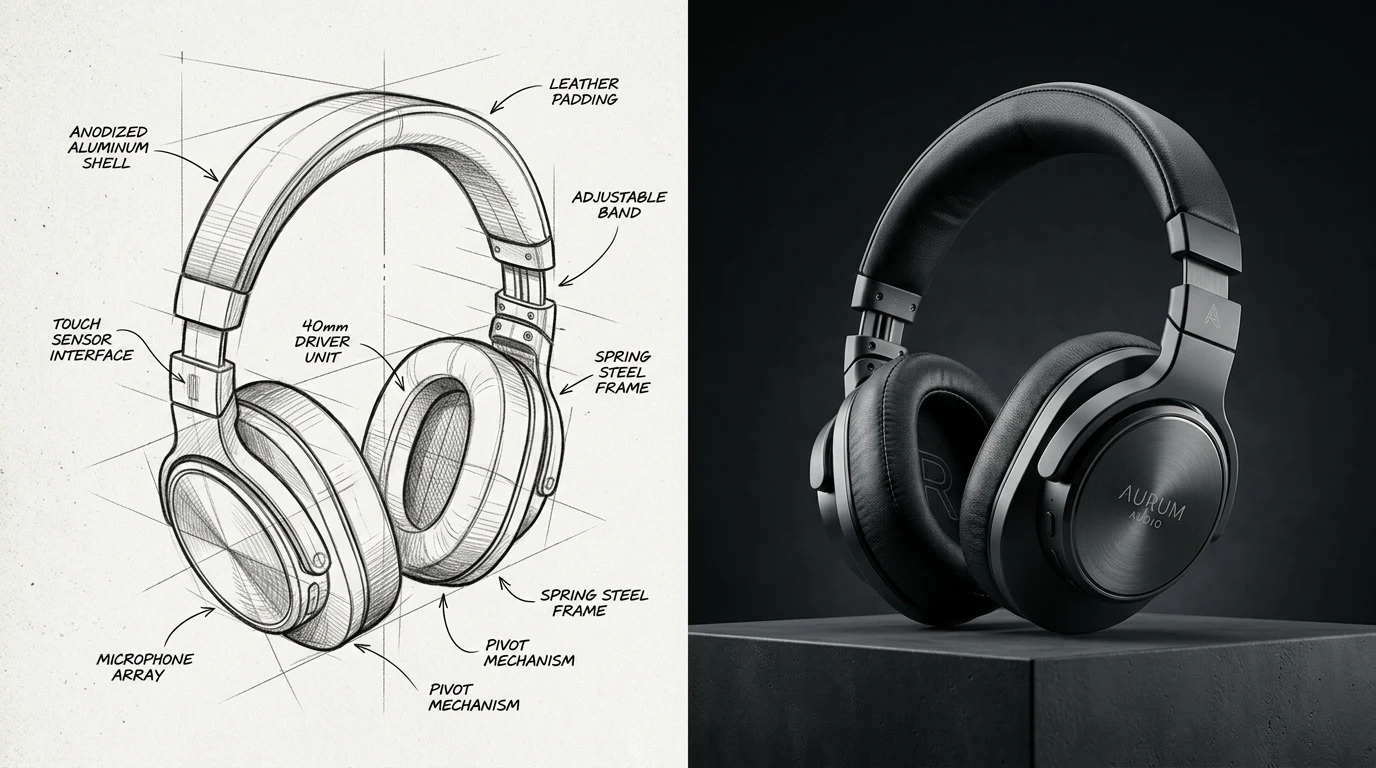
AI for Product Design: How to Turn Concept Sketches into Commercial 3D Renders
Discover how industrial designers, hardware startups, and product teams use AI sketch-to-image workflows to turn rough ideation sketches into photorealistic 3D renders with exact material control.