Turn Sketches into Photorealistic Images: How to Convert Any Drawing into a Photo with AI
Learn how to turn sketches into photorealistic images in seconds using AI. Discover how Draw3D locks lines and geometry to convert drawings into 8K photoreal renders.
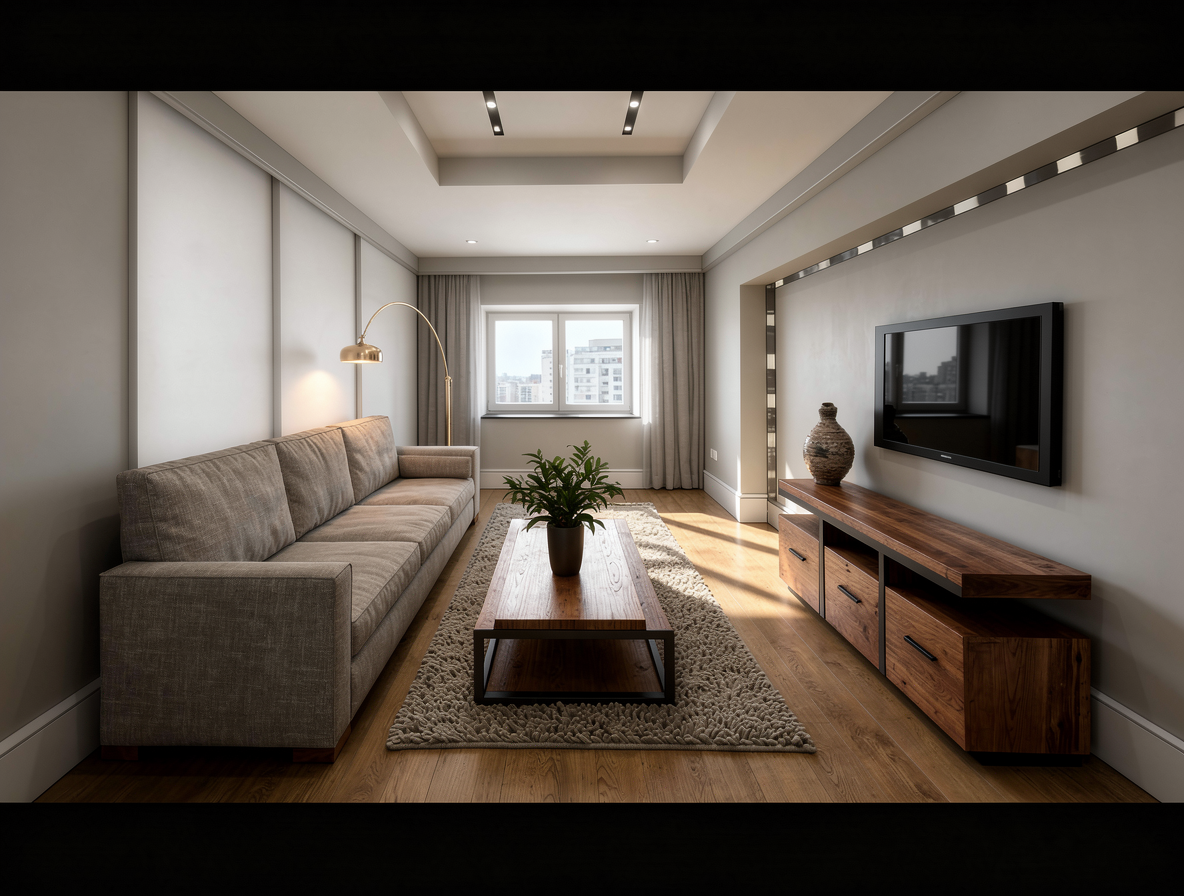
Every creative project begins with a sketch. Whether it is an architect sketching an interior perspective on trace paper, a concept artist brainstorming a creature silhouette, or an urban designer drafting an axonometric masterplan, hand drawing remains the fastest way to translate human imagination into spatial form.
However, bridging the gap between a raw 2D line drawing and a client-ready, photorealistic image has historically been one of the most frustrating bottlenecks in digital production. Taking a rough pencil concept and turning it into a photorealistic visual usually demands hours—or days—of manual 3D modeling, UV unwrapping, physically based material shader setup, digital lighting arrangement, and high-cost render farm passes.
With recent breakthroughs in spatial neural conditioning and geometry-locked diffusion models, that entire workflow has been condensed into seconds. Today, you can turn sketches into photorealistic images instantly while preserving 100% of your original perspective, silhouette, and anatomical proportions.
In this comprehensive guide, we explore the science behind sketch-to-photo AI, analyze real-world case studies across architecture, concept art, and product visualization, and walk through the exact step-by-step process you can use in Draw3D to transform your drawings into stunning photoreal visuals.
What Does It Mean to Turn Sketches into Photorealistic Images with AI?
When people speak of turning sketches into photorealistic images, they are not talking about applying a basic Photoshop filter, posterizing an illustration, or colorizing line art with flat fills.
True photorealistic transformation means the AI interprets the underlying spatial coordinates of your 2D lines and synthetically generates:
- Physically Based Materials (PBR): Realistic surface textures including microscopic wood grain, soft woven textile fibers, brushed metal sheens, and clear glass refraction.
- Global Illumination & Radiosity: Physically plausible light bounces, ambient occlusion along room corners, and directional sunbeams casting soft drop shadows.
- Depth of Field & Lens Optics: Realistic camera focal length effects, subtle chromatic dispersion, and cinematic bokeh that replicate high-end DSLR cameras.
- Micro-Surface Imperfections: Natural dust motes, subtle surface variations, and organic wrinkles that prevent the image from looking like sterile computer graphics.
Why Do Standard Text-to-Image AI Tools Fail When Converting Sketches?
Many artists and architects first attempt to convert drawings using mainstream text-to-image AI platforms like Midjourney, DALL-E, or stock Stable Diffusion web interfaces. Inevitably, the results are deeply disappointing.
Standard diffusion models treat uploaded images as loose visual "inspiration" (image-to-image with random noise) rather than structural blueprints. This produces critical failure modes:
1. Hallucinated Perspective & Geometry
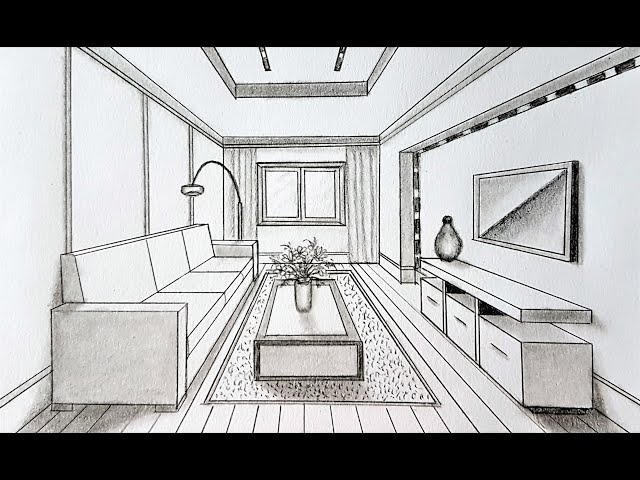
Standard AI moves windows, alters ceiling heights, bends straight walls, and warps furniture silhouettes. If you drew a 3-seater modern sofa with specific proportions, a standard model might replace it with an antique armchair or shift its orientation entirely.
2. Loss of Subject Identity
For character sketches or animal art, generic models hallucinate random anatomy—adding extra limbs, altering eye placement, or completely changing the breed, expression, or posture of the subject.
3. Inconsistent Material Mapping
Without explicit spatial edge boundaries, materials bleed into one another. A wooden coffee table might merge into the carpet, or glass windows turn into solid concrete walls.
4. Impossible Re-Rolling Cycles
Prompting harder does not fix structural drift. Every time you regenerate, the seed shifts and the entire image recomposes from scratch, destroying creative continuity.
How Does Draw3D Turn Sketches into Photorealistic Images While Preserving Lines?
To solve the limitation of conventional text prompts, Draw3D uses a proprietary pipeline built on structural conditioning adapters and multi-scale edge guidance.
Instead of guessing the composition from text, the AI processes your input drawing through three synchronized neural layers:
- Spatial Edge Extraction: The engine analyzes the line weight, vector paths, and perspective angles of your drawing. Hard boundaries (such as architectural corners, tabletop edges, or character silhouettes) are locked as invariant structural constraints.
- Monocular Depth Estimation: Even though your sketch is a flat 2D file, Draw3D infers the 3D depth field—distinguishing foreground elements (like the rug or puppy paws) from background walls or sky gradients.
- Latent Texture & Lighting Diffusion: The neural synthesizer infuses physically accurate materials, colors, and global illumination strictly within the locked line coordinates, guided by your natural language prompt.
Real-World Use Cases: Where Turning Sketches into Photos Changes Everything
The ability to turn sketches into photorealistic images unlocks transformative productivity across multiple creative and technical industries:
1. Architectural Schematic Design & Interior Staging
Architects and interior designers spend significant time presenting early concepts to clients who cannot read 2D floor plans or unrendered wireframes. Using Draw3D, an architect can sketch a concept on an iPad during a morning client consultation and generate four photorealistic material options before the client leaves the meeting.
2. Concept Art, Character Design & Gaming Assets
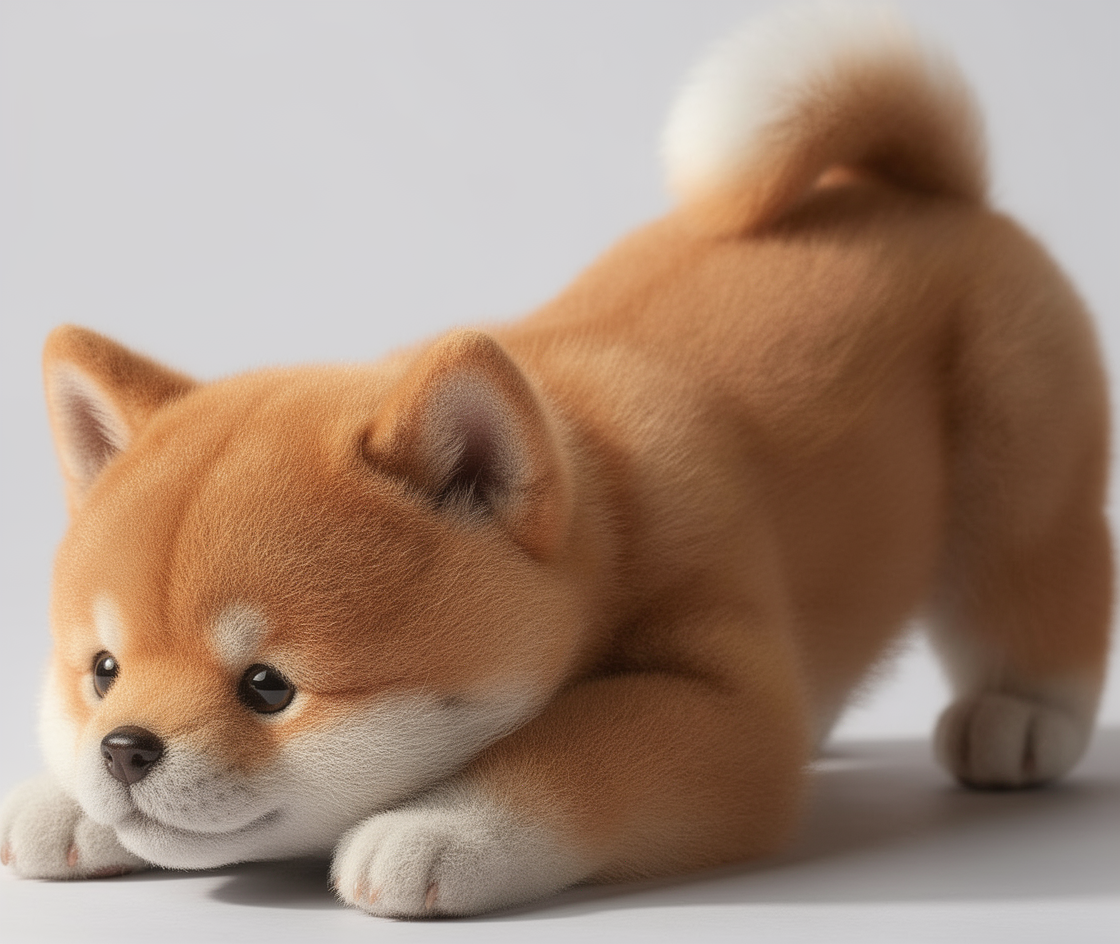
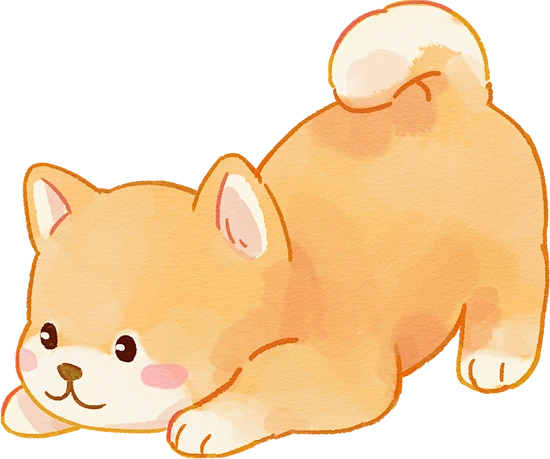
Concept artists typically draw dozens of silhouette and creature thumbnails. Transforming these sketches into photorealistic character portraits (as shown in Figure 2 above with the playful puppy) allows art directors to greenlight creature textures, hair grooming, and studio lighting without waiting weeks for 3D sculptors and groom artists.
3. Urban Masterplanning & High-Rise Massing Studies
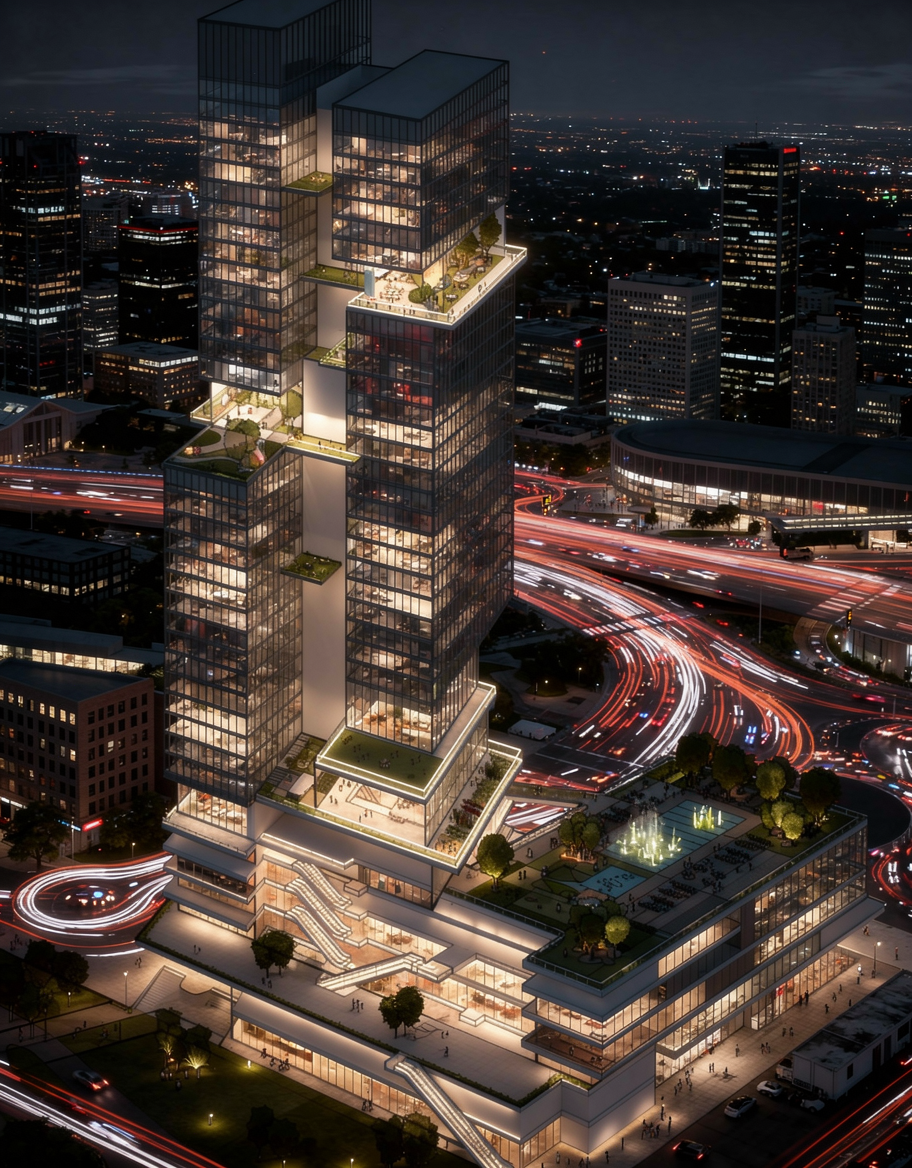
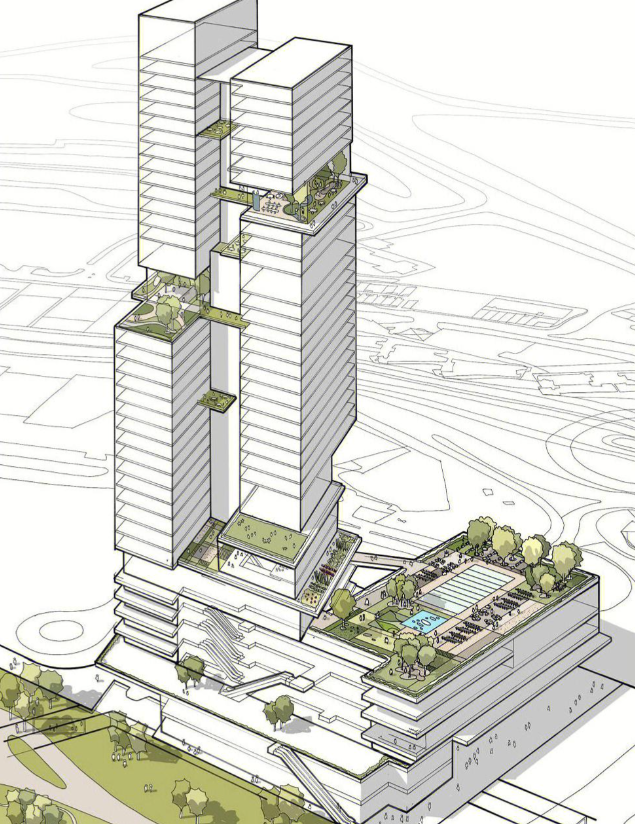
Large-scale developments involve complex axonometric line drawings featuring podiums, transit links, multi-tower silhouettes, sky gardens, and terraced landscapes. Transforming these line masterplans into atmospheric twilight or daytime photoreal renders communicates civic scale and investor appeal instantly.
4. Minimal Line Art & Product Outlines
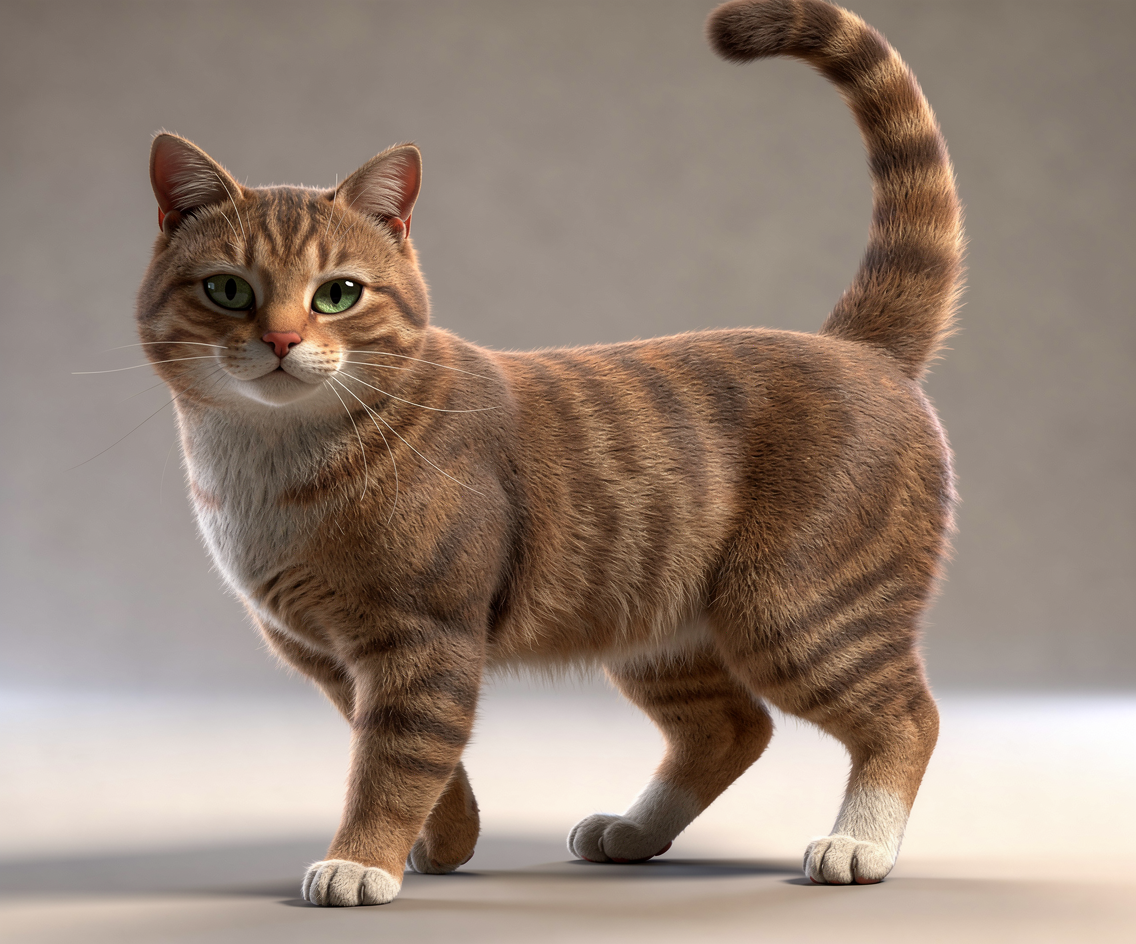
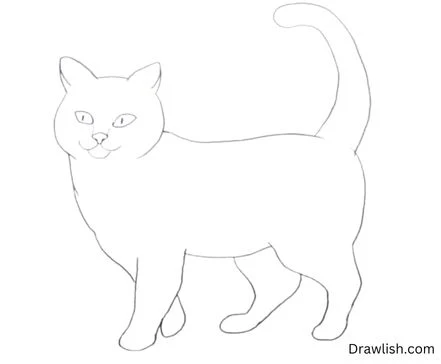
Even the most minimalistic contour line drawings—with zero shading, zero color, and simple black strokes on a white canvas—can be transformed into vivid, photorealistic photographs. As shown in Figure 4 below, a simple line silhouette of a standing cat is interpreted with anatomically accurate musculature, realistic fur directionality, whiskering, and studio rim lighting.
How to Turn Sketches into Photorealistic Images: A 4-Step Walkthrough
Ready to convert your own drawings into photoreal imagery? Here is the complete step-by-step workflow using the Draw3D rendering canvas:
Prepare & Upload Your Drawing
You can upload virtually any visual format: pencil sketches on paper, digital ink drawings from Procreate, CAD line wireframes, or rough doodles. For best results:
- Ensure lines are reasonably visible against the background (good contrast).
- Straighten or crop your camera photo if photographing a physical sketchbook.
- Upload your file into the Draw3D Workspace.
Select Your Rendering Category & Presets
Choose the dedicated processing profile that matches your subject:
- Architecture & Interiors: Optimizes for planar surfaces, glass transparency, concrete, timber, and architectural lighting.
- Concept Art & Characters: Optimizes for organic skin, hair grooming, realistic fur shaders, and atmospheric rim lighting.
- Product & Industrial Design: Focuses on studio lighting, chamfered edge highlights, metals, plastics, and glass finishes.
Write Your Photorealism Prompt
Because Draw3D locks the geometry from your sketch, you don’t need to describe the layout or position of objects. Focus your prompt on materials, lighting conditions, and camera mood:
Refine with Canvas Inpainting & Upscale to 8K
Once your render is generated (typically within 4 to 8 seconds), you can use Draw3D’s multi-region canvas editor to adjust individual elements (like changing cushion fabric or adding an art piece on the wall) without regenerating the rest of the scene. Finally, trigger the 8K neural upscaler for print-ready portfolio resolutions.
What Prompt Formulas Work Best When Converting Sketches to Photoreal Images?
Writing prompts for sketch-to-image AI requires a different mindset than standard text prompting. Since your lines define the composition, your text acts as the director of photography and material fabricator.
Use this proven 4-part formula:
| Category | Recommended Prompt Formula | Key Realism Keywords to Include |
|---|---|---|
| Interior Living Room | "Scandinavian living room, warm wool rug, white plaster walls, walnut console, soft daylight through sheer curtains" | Indirect bounce light, micro-texture, fabric weave, subtle ambient occlusion |
| Animal / Character | "Fluffy shiba inu puppy resting on floor, detailed amber fur texture, bright wet nose, studio softbox lighting" | Subsurface scattering, fine fur grooming, shallow depth of field, catchlight in eyes |
| High-Rise Tower | "Curved glass curtain wall skyscraper at twilight, illuminated offices inside, rooftop infinity pool, evening city street traffic" | Reflective glazed facade, 2700K warm interior illumination, long-exposure light trails |
| Industrial Product | "Ergonomic audio headphones, matte black anodized aluminum, perforated leather headband, dark studio pedestal" | Specular edge highlight, CNC chamfer, satin metallic finish, macro studio shot |
Can You Convert Rough or Messy Hand-Drawn Sketches into Photoreal Renders?
Yes. You do not need to be a professional draughtsman or technical illustrator to achieve photorealistic results. Draw3D features an adjustable Line Conformance Slider:
- High Conformance (80% - 100%): Strictly adheres to every line stroke. Ideal for architectural blueprints, precision CAD exports, and exact product wireframes.
- Balanced Conformance (50% - 75%): Smooths out hand tremors, straightens slightly wobbly lines, and closes minor pencil gaps while retaining overall proportion. Ideal for rough napkin sketches and quick iPad doodles.
- Creative Conformance (30% - 50%): Uses the sketch as a conceptual massing guide, allowing the AI creative freedom to add architectural foliage, sky clouds, and intricate detailing.
Turn your sketches into photorealistic images today
Stop spending hours setting up 3D materials and waiting for render farms. Upload your drawing, enter your prompt, and watch Draw3D generate photorealistic renders in seconds.
Frequently Asked Questions About Turning Sketches into Photorealistic Images
What is the best AI tool to turn sketches into photorealistic images?
Draw3D is specifically engineered for sketch-to-photoreal conversion. Unlike general image generators that hallucinate new layouts, Draw3D utilizes structural edge locking and depth estimation to keep 100% of your drawing's geometry while generating realistic PBR textures, natural lighting, and up to 8K resolution.
Do my sketches need to be colored or shaded before uploading?
No. Draw3D works seamlessly with pure black-and-white line art, ballpoint pen sketches, pencil drawings, and even rough digital wireframes. The AI infers 3D depth, material shaders, and color palettes directly from your text prompt.
Can I edit specific parts of the generated photoreal image without starting over?
Yes. Draw3D includes a native multi-region canvas inpainting editor. You can draw a bounding box around any area (such as a rug, a window, or a piece of furniture) and issue localized prompt instructions without disturbing the rest of your render.
What resolution can I export my photorealistic renders in?
Generations can be upscaled natively up to 8K resolution (7680 × 4320 pixels) using Draw3D's high-fidelity upscaler, ensuring ultra-crisp results for architectural presentation boards, client portfolios, and commercial print campaigns.
Does the AI retain commercial rights to my rendered images?
No. You retain full ownership and commercial rights over all images and renders generated through your Draw3D account. You can freely use them in commercial client pitches, marketing materials, architectural bids, and published artwork.
Further Reading
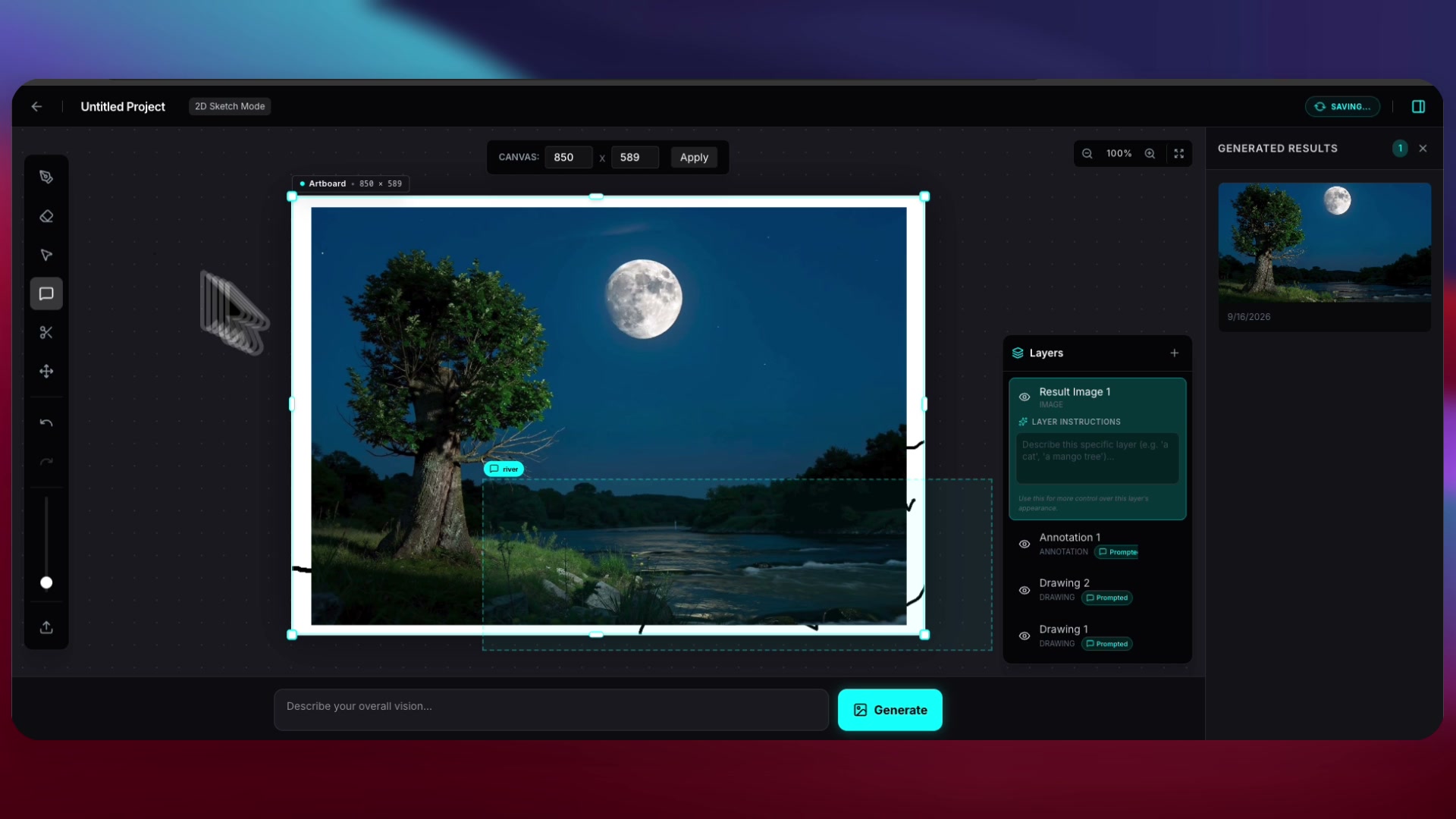
Turn Simple Doodles into Photorealistic Landscapes with AI: The Layer-by-Layer Drawing Workflow
Learn how to turn simple sketches and doodles into photorealistic landscapes using AI. Discover Draw3D's layer-based drawing canvas and spatial area prompts.
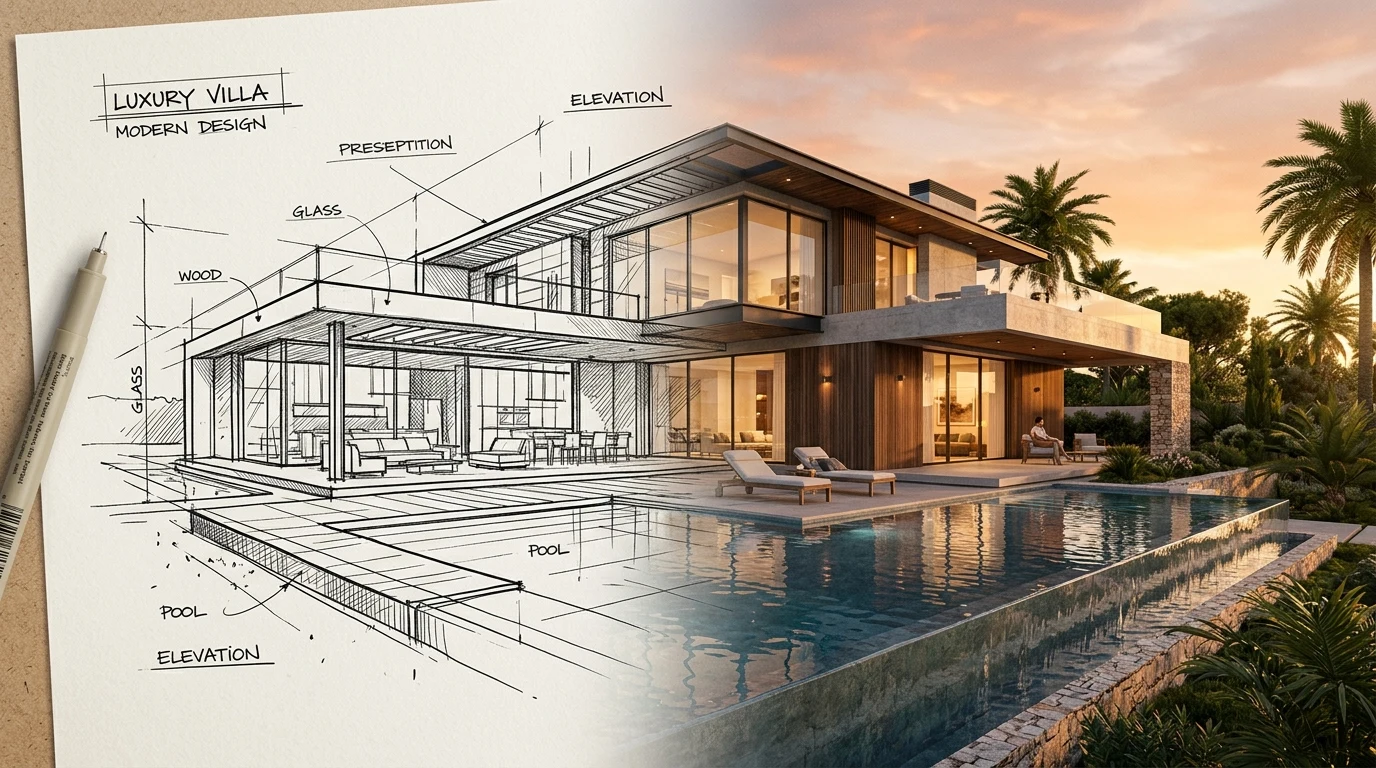
The 6 Best Free Sketch to Image AI Tools in 2026 (Tested & Ranked)
Looking for the best free sketch to image AI? We tested and ranked the top free tools in 2026—comparing real-time canvas drawing, line fidelity, export limits, and watermark policies.
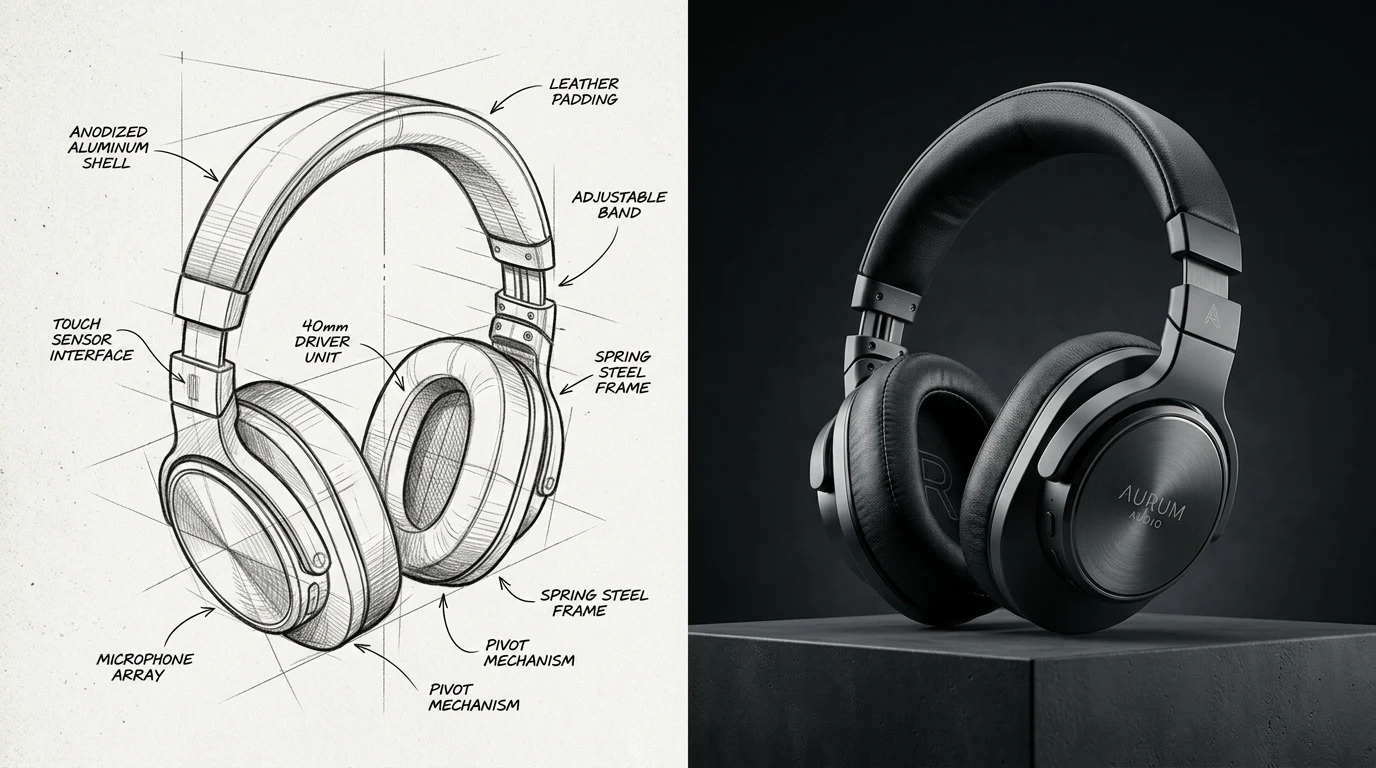
AI for Product Design: How to Turn Concept Sketches into Commercial 3D Renders
Discover how industrial designers, hardware startups, and product teams use AI sketch-to-image workflows to turn rough ideation sketches into photorealistic 3D renders with exact material control.