Storyboard to Cinematic Video: How to Turn Storyboards into Film with AI
Discover how to turn storyboards into cinematic video using AI. Learn the storyboard-first workflow to lock character identity and direct camera motion.
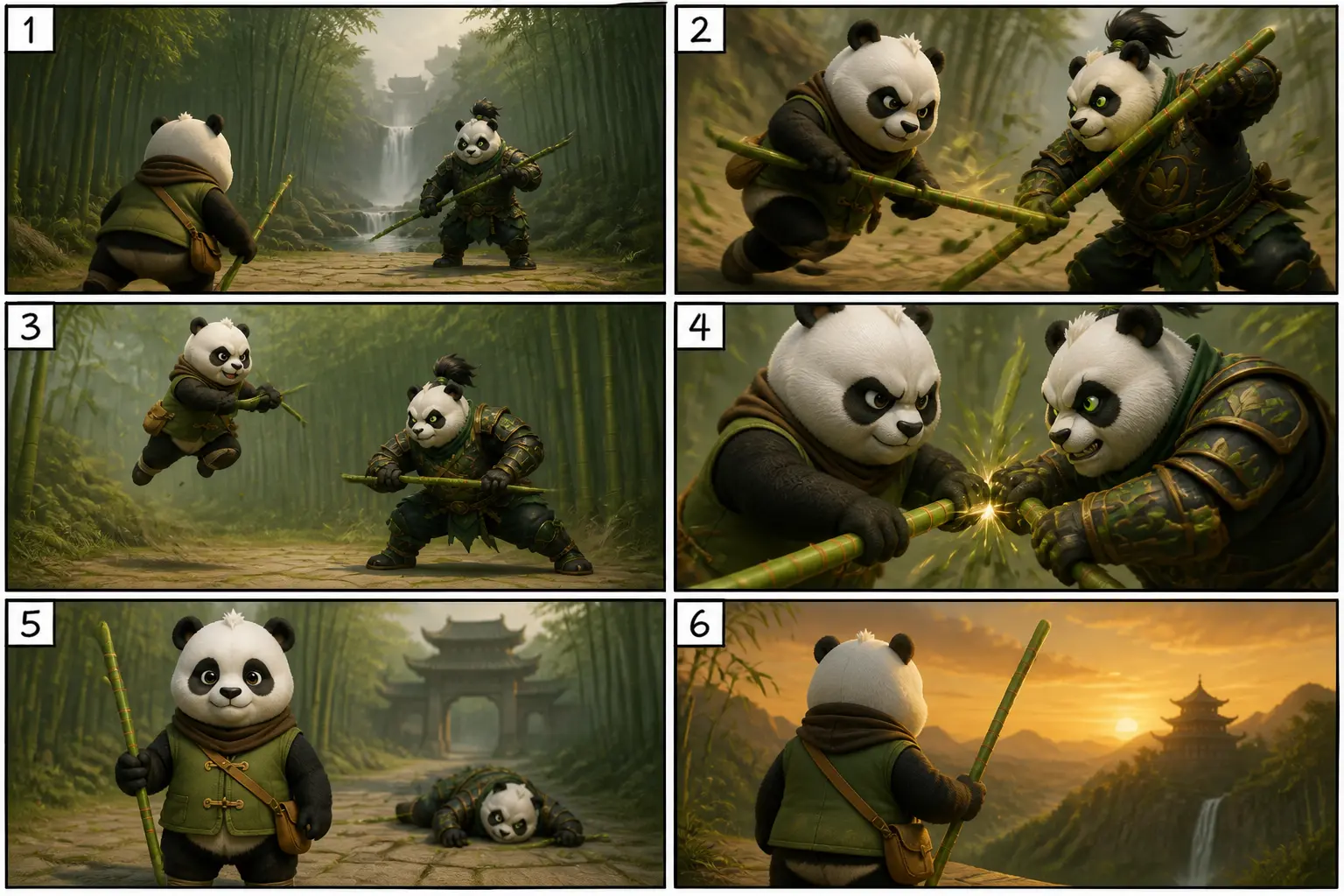
In traditional filmmaking and commercial animation, the storyboard is sacred. Before a single dollar is spent on lighting, camera crews, sets, or 3D render farms, directors map out every keyframe on paper. Storyboards dictate shot composition, pacing, camera movement, and emotional rhythm. They are the immutable contract between the director's imagination and the production pipeline.
When first-generation AI video models (like early text-to-video generators) emerged, many creators hoped they could bypass storyboarding entirely by typing descriptive prompts into a single chat box. The reality, however, was chaotic: characters' faces morphed uncontrollably across cuts, hands melted into objects, clothing colors changed from shot to shot, and cameras moved in unpredictable, disorienting trajectories.
This has sparked an industry-wide pivot toward the storyboard-first AI workflow. Instead of asking AI to guess what a scene should look like from raw text, filmmakers now anchor their vision with visual keyframe storyboards, locking down character identities and spatial layouts before generating fluid, continuous cinematic motion.
In this comprehensive guide, we explore how to turn storyboards into cinematic video, analyze the technical breakthrough of frame-to-video conditioning, and walk through the exact production pipeline you can use in Draw3D Storyboard Studio to direct Hollywood-grade video sequences with zero identity drift.
What is the Storyboard-First Workflow for AI Video Creation?
The storyboard-first workflow (also known as the frames-first pipeline) is an architectural approach to generative film production. Rather than prompting video models directly, the production is separated into two distinct stages:
Static Keyframe & Anchor Locking
You establish visual ground truth before generating any motion. You create consistent character sheets (locking facial features, hair, wardrobe) and generate high-fidelity storyboard panels for every critical beat of the script.
Directed Motion & Camera Synthesis
Each approved storyboard panel is fed into a conditioned image-to-video diffusion engine as an immutable starting anchor. You specify exact camera kinematics (dolly, pan, tilt, orbit) to synthesize motion in modular 5-to-15 second clips.
Why Do Text-to-Video AI Generators Fail at Cinematic Storytelling?
To understand why storyboarding is non-negotiable for serious filmmakers, consider what happens when you prompt an off-the-shelf text-to-video generator with: "Close-up of Captain Elena looking anxiously out the cockpit window as the ship rattles."
The model might produce a visually interesting 4-second clip. But when you write the next shot—"Medium shot of Captain Elena grabbing the throttle lever"—the model creates a completely different person: her hair color shifts from brown to blonde, her jacket has different patches, and the cockpit geometry bears zero resemblance to the previous angle.
This fatal flaw is known as Identity & Environment Drift:
- No Shared Latent Memory: Independent text prompts have no temporal recollection of previous seed states or character anatomy.
- Lack of Spatial Blocking: Text cannot describe subtle physical choreography—where a character enters the frame, where the eye-line rests, or how light bounces off the cheekbone.
- Uncontrolled Camera Jitter: Text prompts like "cinematic camera" often produce wild, nausea-inducing drone movements rather than measured director choices.
How Does Draw3D Turn Storyboards into Cinematic Video Without Identity Drift?
Draw3D was engineered specifically to solve the continuity crisis through a proprietary Spatial Conditioning & Motion Vector Architecture:
- Zero-Drift Frame Anchoring: Your storyboard panel (whether created from a hand-drawn sketch, a 3D blockout, or a photoreal still) serves as the exact starting frame $t_0$. The neural network is mathematically penalized if it alters character facial geometry or environment boundaries.
- Monocular Depth Decomposition: The engine automatically splits your 2D storyboard panel into discrete depth planes—distinguishing immediate foreground elements, mid-ground characters, and background skies. This allows realistic parallax as the camera moves.
- Decoupled Motion Paths: Instead of confusing subject movement with camera motion, Draw3D allows you to direct camera trajectories (e.g., "slow tracking push-in at 24fps") independently from subject animation (e.g., "hair gently rustling in the wind").
How to Turn Storyboards into Cinematic Video: A 5-Step Production Pipeline
Here is the exact step-by-step workflow used by creative agencies, independent filmmakers, and visual directors producing films with Draw3D:
Script Breakdown & Shot List Assembly
Divide your screenplay or concept into discrete camera setups. For each shot, note:
- Focal Framing: Extreme Wide (Establishing), Medium Two-Shot, Over-The-Shoulder, or Macro Close-Up.
- Emotional Beat: What the audience should feel during this 5–10 second moment.
- Camera Intention: Static, slow push-in, lateral track, or sweeping pan.
Generate or Import Storyboard Keyframes
In the Draw3D Workspace, you can either upload your existing hand-drawn storyboards, import CAD/Blender blockout views, or use Draw3D's 2D Sketch Mode to sketch panels directly on canvas. Generate high-fidelity photoreal stills for every keyframe.
Lock Character Sheets & Visual References
Before animating, confirm that your lead characters and environments match across all storyboard panels. Use Draw3D's Multi-Region Canvas to make localized adjustments (adjusting hair, fixing costume badges, or fine-tuning eye direction) so every keyframe is production-ready.
Direct Camera Movement & Synthesize Video
Click the Animate button on your approved storyboard keyframe. Choose your camera trajectory from the director panel or type specific cinematography instructions:
Assemble Modular Clips & Upscale to 4K
Generate your sequence in modular 5-to-15 second clips. Import the generated clips into your timeline editor (such as Premiere Pro, DaVinci Resolve, or CapCut), sync your dialogue and foley sound design, and trigger Draw3D's high-bitrate 4K video upscaler for theatrical presentation.
What Camera Motion Commands Work Best When Animating Storyboards?
The difference between amateur AI video and cinematic film comes down to cinematographic vocabulary. Avoid generic terms like "cool video" or "dynamic action". Instead, use precise camera kinematics:
| Camera Movement | Cinematic Purpose | Prompt Directive Template |
|---|---|---|
| Slow Push-In / Dolly Forward | Increases emotional intensity, focuses viewer attention on a character revelation or decision. | "Slow subtle dolly push-in toward subject's face, 50mm prime, soft background bokeh, natural breathing motion" |
| Lateral Tracking Shot | Follows subject traversal through an environment, creating dynamic parallax between foreground and background. | "Smooth lateral dolly track from left to right, maintaining subject in center third, cinematic motion blur" |
| Low-Angle Orbit / Arc Shot | Establishes power, grandeur, heroic presence, or disorientation around a central monument or character. | "Low-angle circular arc shot rotating 45 degrees, dramatic rim lighting, majestic scale" |
| Crane / Jib Down | Transitions from wide environmental context to intimate human-scale action. | "Slow crane down from treetop canopy to ground-level path, smooth vertical trajectory, golden hour light" |
Can You Maintain Consistent Characters and Lighting Across Multiple Shots?
Yes. When working in Draw3D, character and lighting continuity across multi-shot storyboard sequences is maintained through three core techniques:
- Character Seed & Token Pinning: Once you establish your lead subject, save their facial embeddings and physical descriptions as a reusable preset across all storyboard frames.
- Environmental Lighting Anchors: Specify the exact color temperature (e.g. "2700K warm interior illumination" or "overcast diffused daylight 5600K") across your prompt tokens so ambient radiosity remains uniform across camera reverse-angles.
- Keyframe Inpainting Refinement: If a secondary shot has a minor wardrobe discrepancy, use Draw3D's canvas inpainting to correct the still frame before initiating video synthesis.
Turn your storyboards into cinematic video today
Stop fighting with uncontrollable text prompts. Lock your character designs, assemble your visual storyboard panels, and direct fluid cinematic camera movement with Draw3D.
Frequently Asked Questions About AI Storyboard-to-Video Generation
Can I use rough hand-drawn storyboard sketches or do they need to be finished art?
You can start with either. Draw3D allows you to upload rough hand-drawn storyboard panels and run them through our Sketch-to-Photoreal engine first to produce high-fidelity keyframe stills, which are then seamlessly animated into motion clips.
How long can each generated video shot be?
Draw3D generates video in modular 5-to-15 second increments. This aligns with professional cinematography principles, where average feature film shot lengths range between 3 and 7 seconds. You can extend clips or daisy-chain ending frames into subsequent shots.
What video export resolutions and aspect ratios are supported?
Draw3D supports standard 16:9 cinematic widescreen (1080p, 4K, and 8K upscale), 2.39:1 anamorphic theatrical ratios, 9:16 vertical video for mobile social campaigns, and 1:1 square formats.
How do I prevent the background or character faces from warping during motion?
By providing a high-fidelity storyboard frame as the visual anchor and using specific camera motion prompts (e.g. "slow pan," "dolly push-in"), Draw3D constrains the latent space. The model moves the camera through 3D depth rather than hallucinating new geometry.
Do I own full commercial rights to the videos created from my storyboards?
Yes. You retain 100% commercial ownership of all video assets, renders, and animations generated through your Draw3D subscription, with complete rights to distribute in commercials, client pitches, films, and streaming platforms.