Storyboard to Video AI: Turn Storyboards Into Cinematic Videos Faster
Learn how storyboard to video AI can simplify cinematic video creation, and how Draw3D's new Storyboard to Video tool makes the workflow much easier.
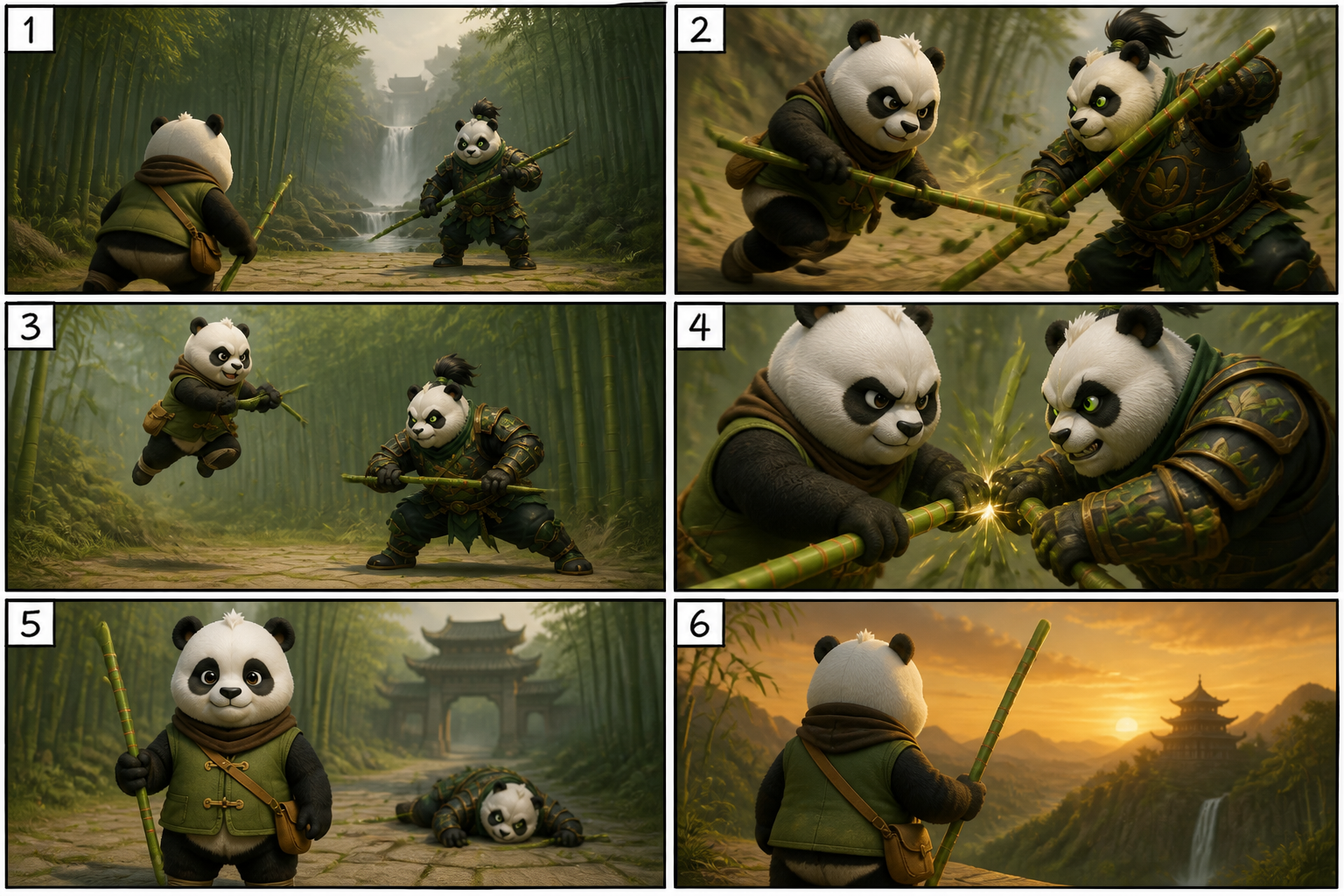
You have probably been seeing viral videos on X where people turn a storyboard into a cinematic AI video using Seedance 2.0. The results are impressive, and in many cases they look like something straight out of a film previsualization pipeline.
But if you look closer, the actual method most people are using is extremely complex. It often takes a lot of back and forth, repeated prompting, scene adjustments, character consistency fixes, and multiple retries before the final video starts to look right.
That is exactly the problem Draw3D is trying to solve with its new Storyboard to Video tool.
Instead of stitching together a complicated workflow across different tools, Draw3D brings the full process into one place. You can create a character, build a storyboard around that character, and then turn the storyboard into a cinematic video using Seedance 2.0, all from inside the same workflow.
Why storyboard to video AI is getting so much attention
Storyboard to video AI is exciting because it changes how quickly ideas can move from concept to motion. A storyboard is already a visual plan for a scene. When AI can understand that plan and translate it into a cinematic video, creators can go from idea to visual output much faster than with a traditional animation or filmmaking pipeline.
That is why these videos are spreading so quickly on social media. They show a new way of turning simple visual planning into something dramatic, dynamic, and highly shareable.
The problem with the current workflow
The current DIY process is powerful, but it is not simple. In many cases, creators need to generate characters in one place, plan scenes in another, refine shots manually, and then keep re-running prompts to get a usable result. A lot of the work is not just creative. It is technical trial and error.
That makes it hard for most people to use consistently, especially if they want speed, better control, and a workflow that does not require constant backtracking.
How Draw3D simplifies storyboard to video AI
Draw3D just added a new tool named Storyboard to Video, and the process is much simpler.
Inside the tool, the workflow looks like this:
- Generate a character from a prompt or from references.
- Generate a storyboard using that character.
- Turn the storyboard into a cinematic video using Seedance 2.0.
That means the entire flow from character creation to cinematic output is now available inside one Draw3D tool. Instead of juggling multiple steps across disconnected apps, you can move through the process in a much more guided and practical way.
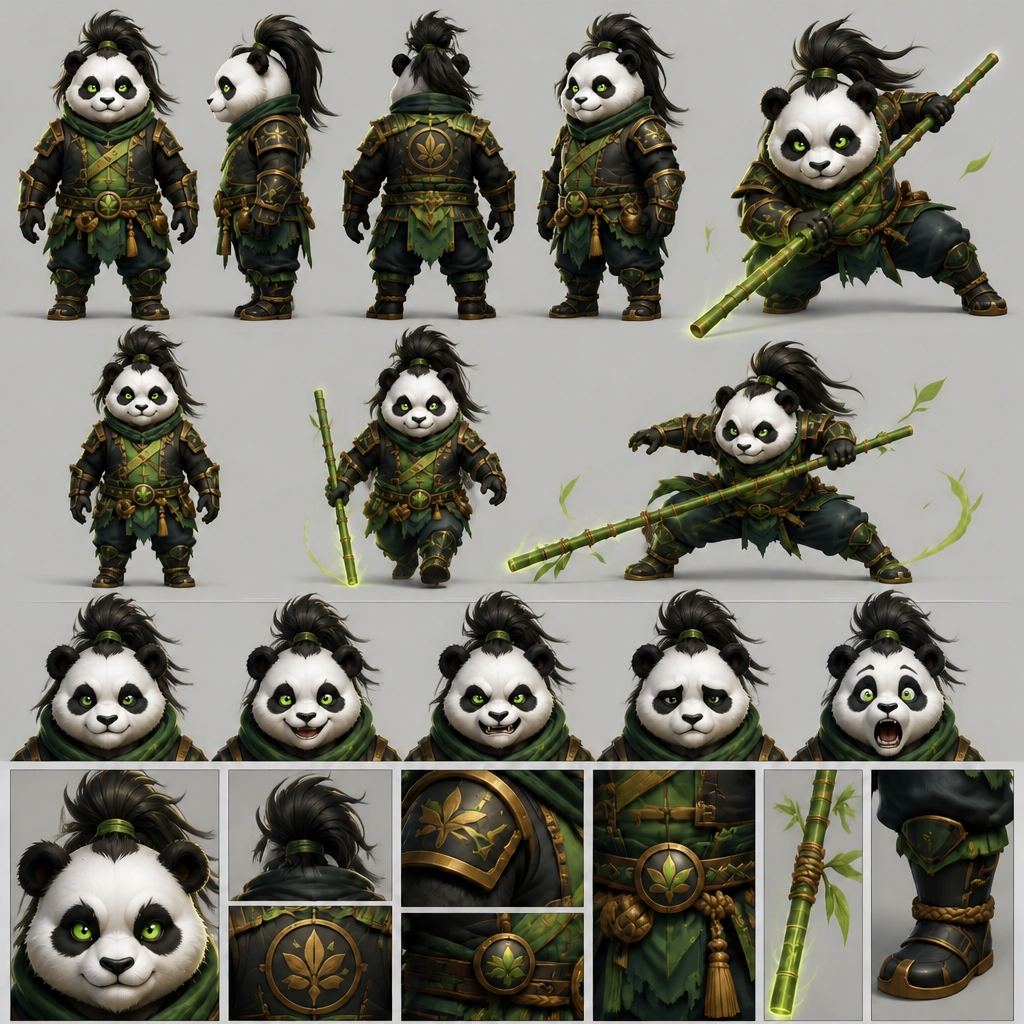
Generate a full consistent character set
The first step is character creation. With Draw3D, you can generate a full consistent character image set using just one prompt. Instead of building each pose or variation manually, one prompt can give you a reusable character set that stays visually aligned across multiple scenes.
Build a storyboard around your characters
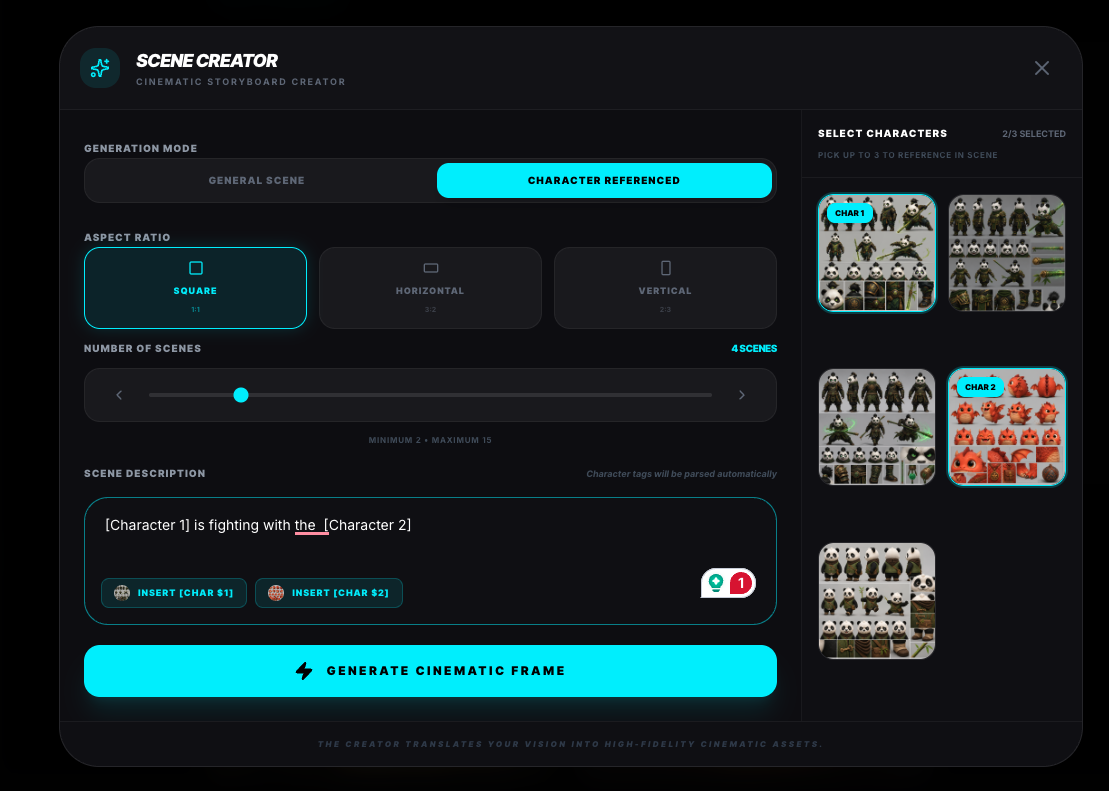
Once your character set is ready, you can include one or multiple characters and generate a storyboard based on the story you want to tell. This makes it much easier to build scene progression while keeping the identity of the characters consistent across frames.
Draw3D also includes a dedicated storyboard builder interface to make this process easier to manage.
Turn the storyboard into video
After the storyboard is ready, you can simply set a duration and generate the final cinematic video. This removes a huge amount of manual back and forth compared with the fragmented workflows people often use elsewhere.
Why this matters
This matters because speed alone is not enough. What most creators actually need is a workflow that is fast and usable. Draw3D makes storyboard to video AI more accessible by reducing the back and forth and packaging the key steps into one streamlined experience.
That is useful for filmmakers, concept artists, marketers, creative teams, solo creators, and anyone experimenting with AI-generated visual storytelling. If you can lock in a character, build scenes around that character, and then generate motion from those scenes in one place, the whole process becomes much easier to repeat and refine.
Watch the tutorial
You can check the full tutorial here:
Full tutorial pic.twitter.com/EXrr8vlUUj
— Jabed Bhuyan (@itzjabed) May 12, 2026
Final thoughts
If you have been watching the rise of storyboard to video AI and wanted a simpler way to get cinematic results, Draw3D's new Storyboard to Video tool is worth looking at. It keeps the workflow focused, cuts down the complexity, and makes it easier to move from character and storyboard to finished motion.
And because it uses Seedance 2.0 for the final generation step, you still get access to the cinematic style people are already getting excited about, but through a workflow that is much easier to use.
Further Reading

How You Can Use AI for Architectural Visualizations
Learn how AI can speed up architectural visualization from sketches and raw 3D scenes to polished renders and video using Draw3D.

Sketch to Image AI: Turn Rough Drawings Into Realistic Renders in Seconds
Discover how sketch to image AI helps architects, designers, and creators turn rough drawings into realistic renders fast with Draw3D.

AI Interior Design: Design Your Interior Using AI With Draw3D
Learn how AI interior design tools like Draw3D let you transform rooms, annotate specific areas, and generate stunning redesigns in minutes.